
Tip & Trick
Microsoft OneNote 2013 remains a powerhouse for note-taking and organization, but many users overlook its most powerful features. These seven hidden tips and tricks will transform how you capture, organize, and retrieve information—saving you hours each week.
Quick Capture with OneNote Quick Launch

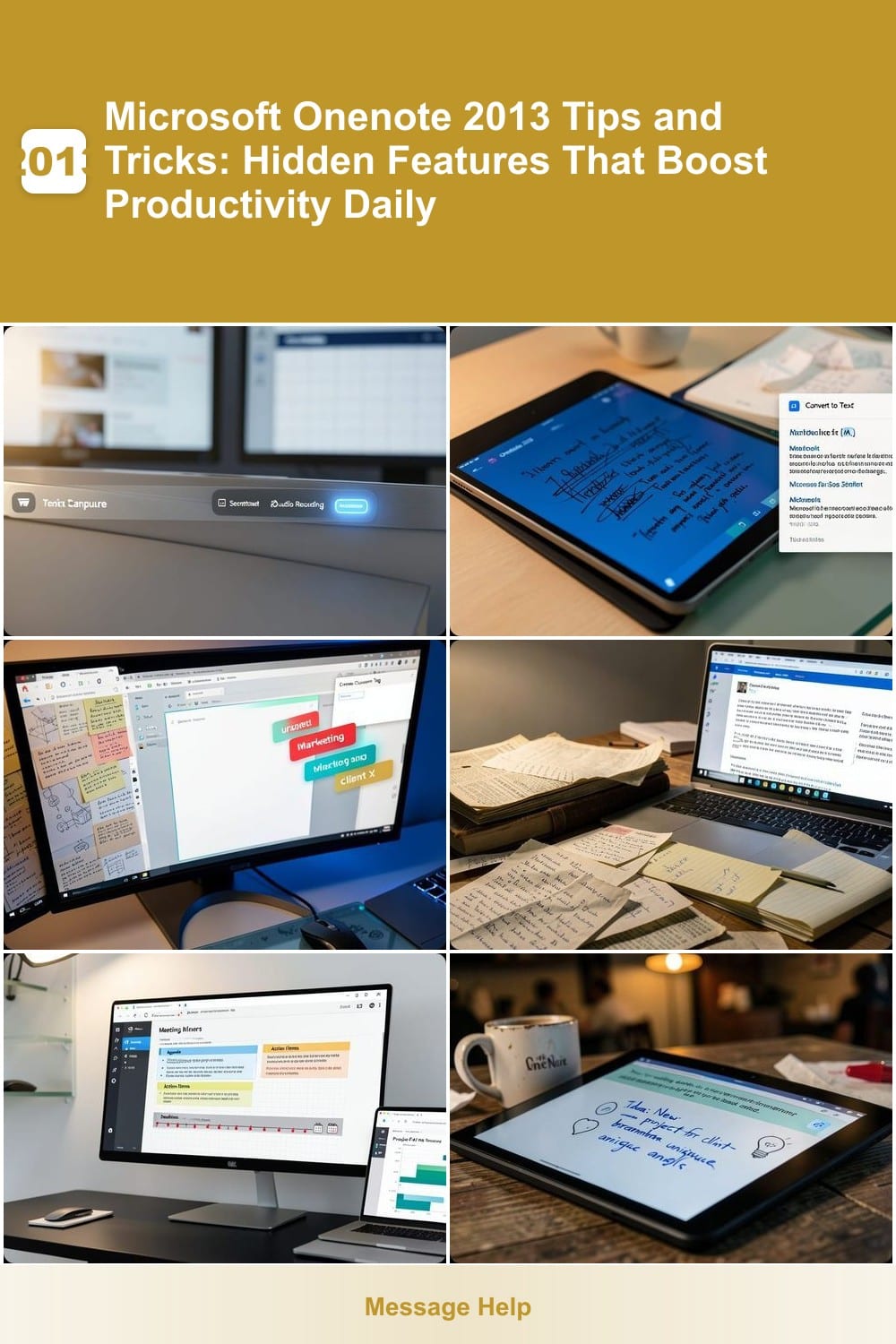
Tired of losing fleeting ideas or important web content because you couldn’t open OneNote fast enough? The OneNote Quick Launch toolbar lets you capture text, screenshots, or even audio recordings instantly—without ever launching the app. Simply pin the toolbar to your taskbar, and you’ll get a floating window with one-click access to clip anything from your screen, browser, or microphone.
With Quick Launch, you can:
- Clip entire web pages with a single click
- Record audio notes directly from any app
- Save screenshots with annotations before they vanish
- Auto-save to a specific notebook (no manual file management)
The toolbar even remembers your last-used notebook, so you’re never more than a click away from preserving that brilliant thought mid-meeting. Perfect for developers debugging code snippets, sales reps capturing client details, or anyone who needs to act fast before ideas slip away. ⚡
Handwriting to Text Conversion for Notes
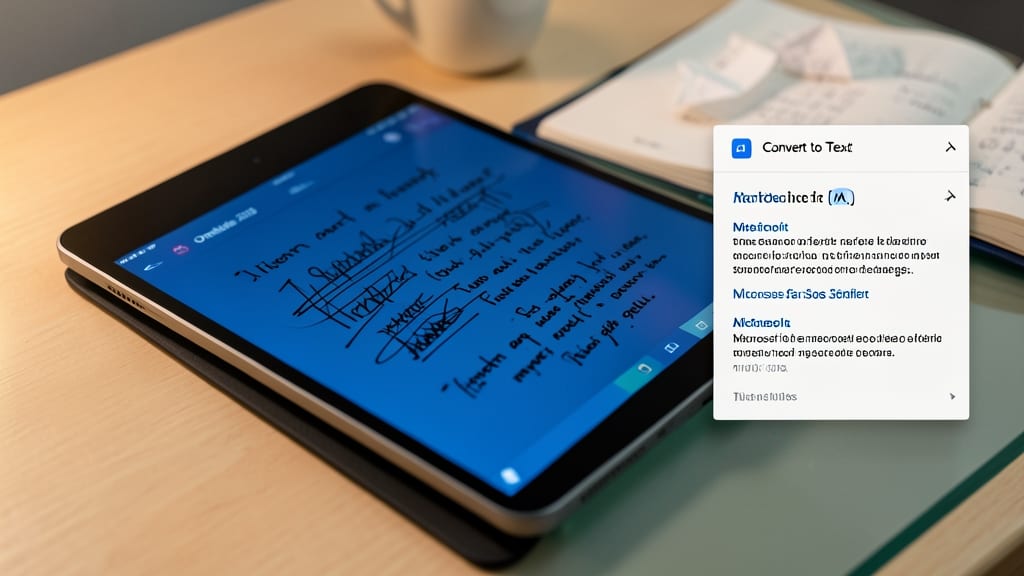
Still clinging to paper for brainstorming or lectures? OneNote 2013’s handwriting recognition turns your scribbles into editable text in seconds—no manual typing required. Simply write on your tablet or touchscreen, then right-click the ink and select "Convert to Text" to instantly transform notes into searchable, copy-pasteable digital content.
The feature works with both printed and handwritten text, even messy scrawl, thanks to Microsoft’s advanced OCR engine. You can then edit the converted text, format it, or even translate it into another language—all without losing your original handwritten context. Perfect for students transcribing lecture notes or researchers digitizing field observations.
This trick is a game-changer for note-takers who love writing by hand but need digital flexibility. Say goodbye to lost papers and hello to instantly searchable, organized notes—all while keeping your natural workflow intact. 💡
Tagging System for Instant Note Organization
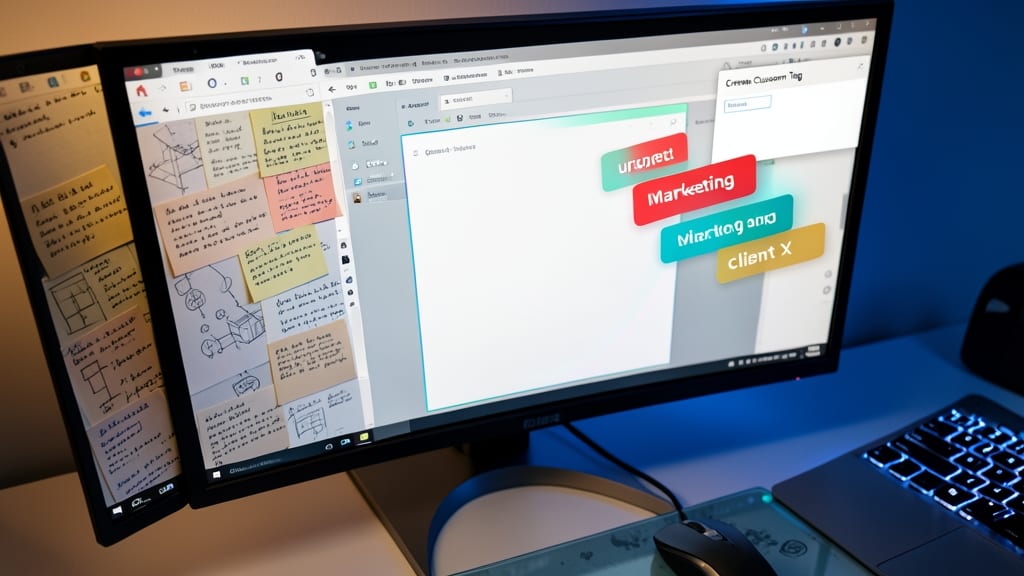
Drowning in a sea of notes? OneNote 2013’s tagging system lets you ditch rigid folders for dynamic, color-coded labels that adapt to your workflow. Unlike folders, tags let you assign multiple categories to a single note—think "urgent," "client X," and "marketing" all at once.
Create custom tags with six preset colors (plus unlimited custom ones) and assign keyboard shortcuts for speed. Need to find all high-priority items across notebooks? Search by tag name or color—no more scrolling through endless pages. The system even syncs tags across devices, so your project-based organization stays consistent whether you're on a desktop or tablet.
Perfect for freelancers juggling multiple clients, students tracking research across subjects, or project managers coordinating cross-functional teams. With tags, your notes finally organize themselves—not the other way around. ✨
Searching Handwritten and Printed Notes

Drowning in stacks of handwritten notes or old printed documents? OneNote’s Optical Character Recognition (OCR) turns physical pages into searchable digital text—no manual typing required. Simply scan or import your notes, and the app extracts text, making it instantly searchable alongside your digital content.
This feature works seamlessly with PDFs, images, and even messy handwriting, thanks to advanced character recognition. You can highlight, edit, or copy text directly from scanned pages, and OneNote’s search function will find keywords just like in any other note. Perfect for archiving research, class notes, or meeting minutes without rekeying everything.
Ideal for archivists, students, or professionals dealing with physical documents, this tool bridges the gap between paper and digital workflows. No more digging through filing cabinets—just scan, search, and save. ✨
Templates for Standardized Note-Taking
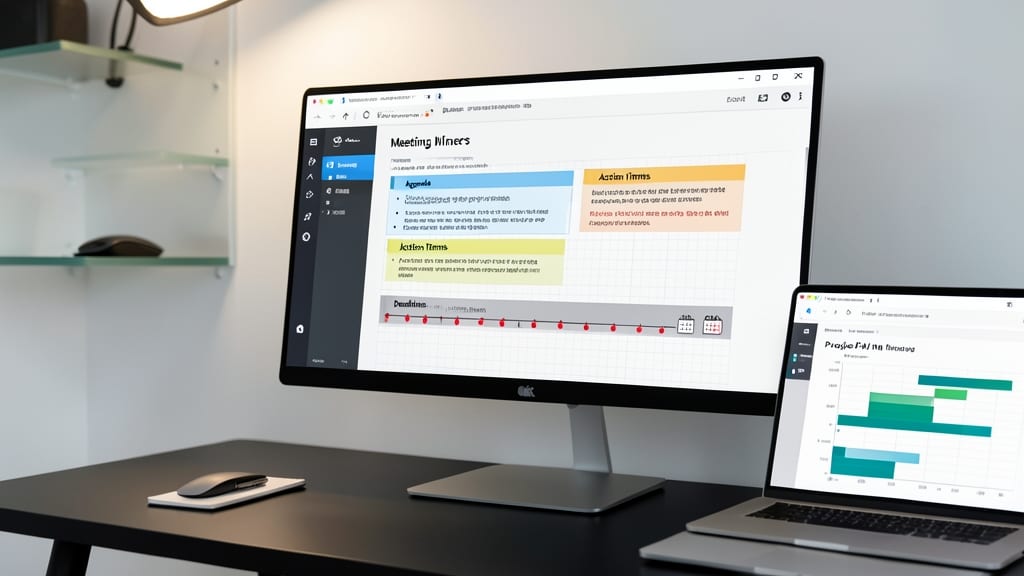
Tired of reinventing the wheel every time you document a meeting or plan a project? OneNote 2013’s pre-built templates—like the Meeting Minutes or Project Plan layouts—eliminate guesswork with structured sections for agendas, action items, and deadlines. Simply insert a template from the Insert tab, and you’ll get a customizable framework that keeps your notes professional and consistent.
These templates aren’t just for work: the To-Do List template syncs with Outlook tasks, while the Blank Meeting Notes format adapts to any discussion. You can even duplicate and modify templates to fit niche workflows, like client onboarding or brainstorming sessions. Best of all, they’re built into OneNote—no extra downloads required.
Perfect for teams, freelancers, or students, these templates ensure everyone follows the same structure, reducing follow-up questions and lost details. ⚡
Offline Access and Sync Across Devices

Ever jotted down a brilliant idea on your tablet during a flight or a meeting in a dead-zone café, only to panic when you realize you’re offline? OneNote 2013’s offline mode lets you edit notes without internet—then automatically syncs changes when reconnected. No manual uploads, no lost work.
Enable it by right-clicking your notebook in the left sidebar, selecting Work Offline, and choosing Yes. Your edits—whether typed, handwritten, or drawn—stay intact until your device reconnects. The sync is conflict-free, too: OneNote merges changes intelligently if you edit the same note on multiple devices. Perfect for field researchers, remote workers, or travelers who can’t rely on stable connections.
This feature works seamlessly across Windows PCs, Macs, and even mobile devices using OneNote’s desktop app. Just ensure you’re signed in with your Microsoft account to unlock cross-device magic. ⚡
Password-Protecting Sensitive Notebooks
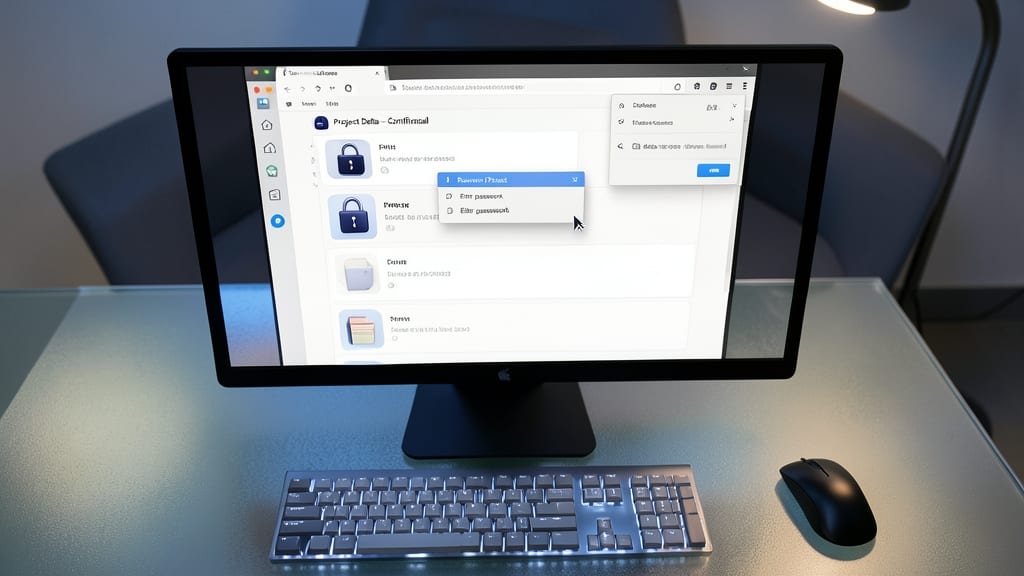
Storing sensitive project details or financial records shouldn’t require third-party apps—OneNote 2013’s built-in password protection handles it seamlessly. Simply right-click any notebook in your list, select Password Protect, and set a custom PIN or alphanumeric code. This encrypts the entire notebook, ensuring only authorized users can access it—no extra software needed.
The feature works across Windows PCs and tablets, syncing securely with your Microsoft account. You can even set a reminder to change passwords periodically, adding an extra layer of security for long-term projects. Unlike cloud-based vaults, this keeps your data local-first while still allowing cloud sync for backup.
Ideal for freelancers managing client contracts, financial advisors tracking sensitive notes, or researchers handling proprietary data, this trick turns OneNote into a self-contained security vault. 🔧