
Tip & Trick
Remote work offers flexibility but exposes you to cyber threats like phishing, malware, and data breaches. These 10 security best practices—backed by IT experts—help you create an impenetrable digital fortress without sacrificing productivity.
Enable Multi-Factor Authentication Everywhere
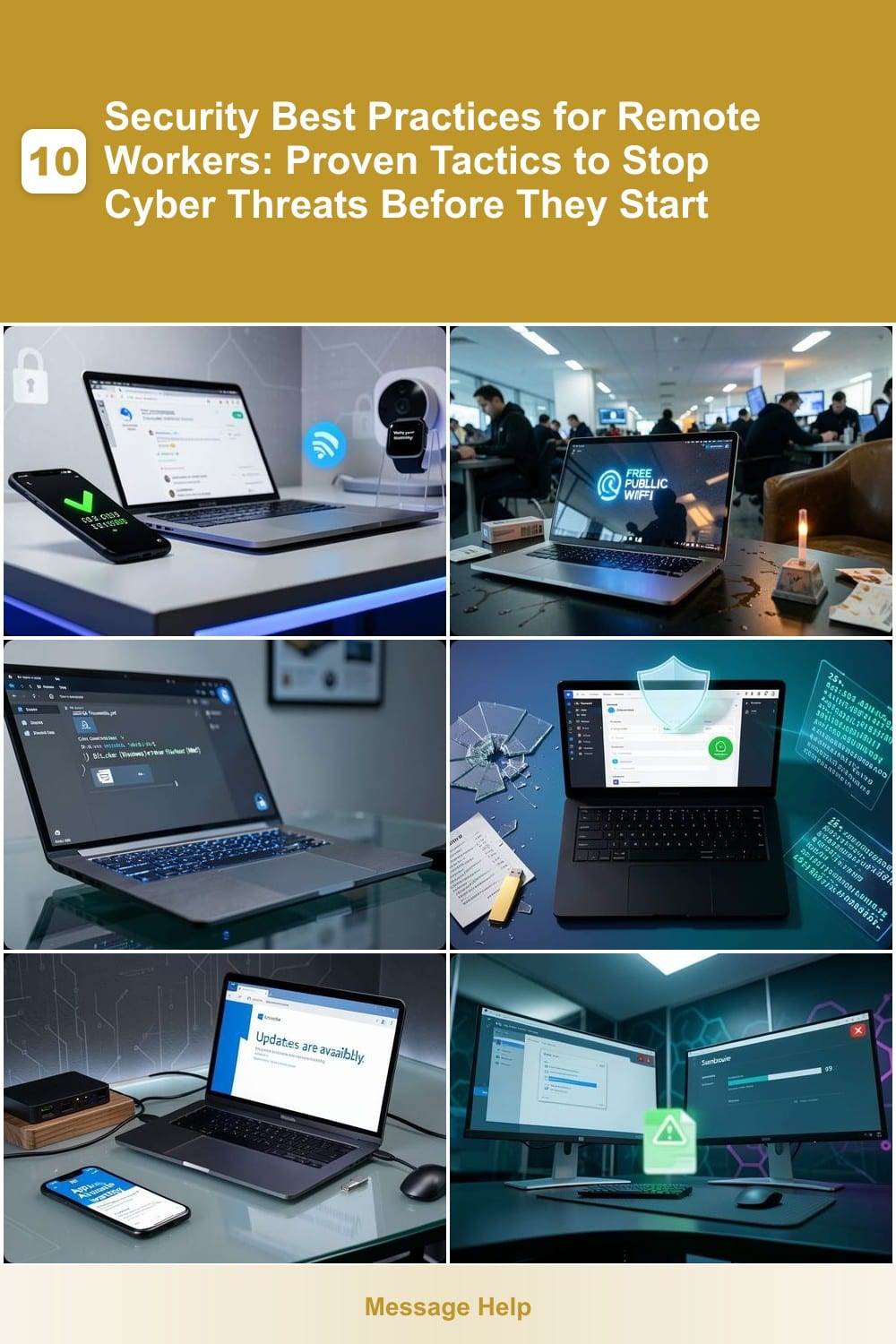
Credential theft is the #1 way hackers breach accounts—but multi-factor authentication (MFA) stops 99.9% of automated attacks before they start. The best part? It works across emails, cloud apps, and even smart home devices like Ring cameras or Nest thermostats.
Start with authenticator apps (Google Authenticator, Authy) for time-based codes or biometric logins (Face ID, Windows Hello) for frictionless access. Services like Microsoft 365, Google Workspace, and LastPass offer built-in MFA—enable it in Settings > Security within minutes. For extra security, use FIDO2 keys (YubiKey) to replace passwords entirely on high-risk accounts.
Remote workers should prioritize MFA for work email, banking, and VPN logins—these are the top targets for phishing. Even smart home devices benefit: enabling MFA on your Amazon Alexa or Google Home account prevents unauthorized access to your entire IoT network. ⚡
Use a Dedicated Work VPN Always
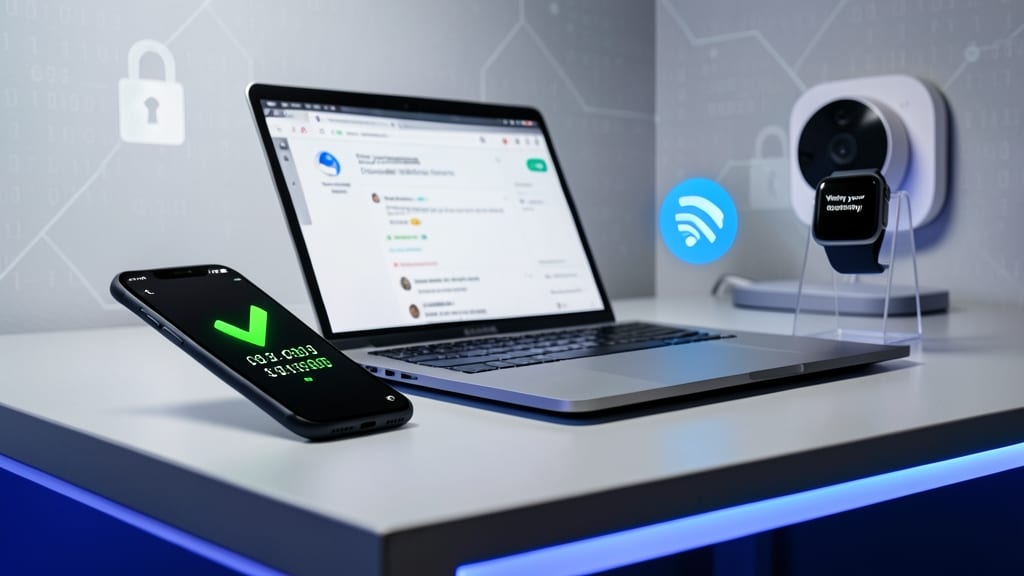
Public Wi-Fi at airports or coffee shops is a hacker’s playground—unless you’re using a dedicated work VPN. Unlike free consumer VPNs that may log your activity or lack enterprise-grade encryption, a company-issued VPN ensures all traffic between your device and corporate servers stays invisible to prying eyes.
Look for AES-256 encryption, split tunneling (to keep local traffic fast), and kill switches that cut internet access if the VPN drops. Tools like Cisco AnyConnect or Pulse Secure are industry standards, while OpenVPN offers open-source alternatives for tech-savvy users. These solutions encrypt not just emails but also file transfers and video calls.
This isn’t just for road warriors—even hybrid workers should use their work VPN when connecting to untrusted networks. It’s the digital equivalent of a deadbolt on your front door, especially when accessing sensitive company resources. 💻
Implement Device-Level Encryption Immediately
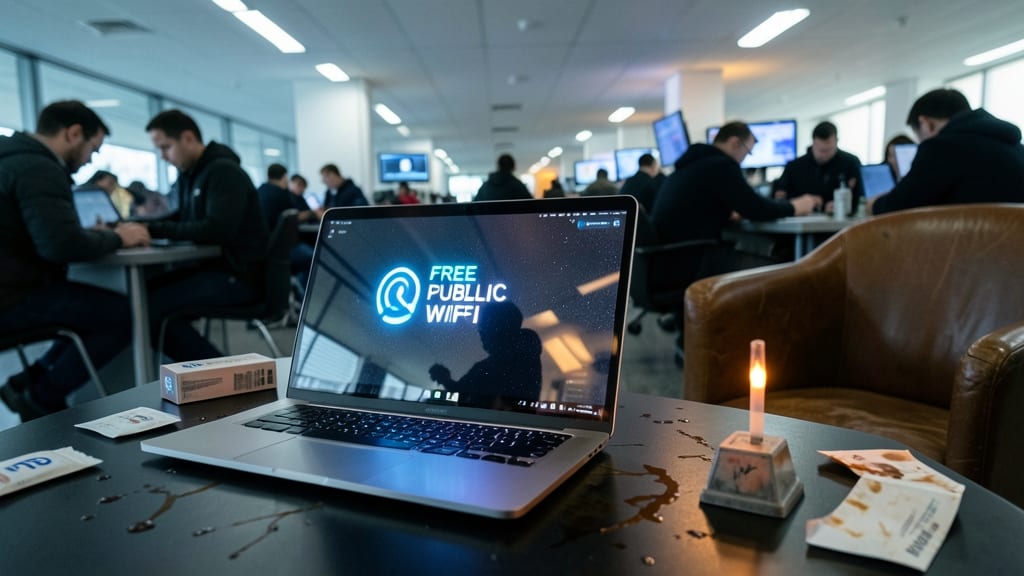
Your laptop contains years of sensitive work files, financial records, and personal data—all vulnerable if lost or stolen. Device-level encryption (like BitLocker for Windows or FileVault for Mac) scrambles your entire drive, making stolen data useless without your password. This is the digital equivalent of a deadbolt: simple, effective, and often overlooked.
Enabling it takes minutes: Windows users find BitLocker in Control Panel > BitLocker Drive Encryption, while Mac users activate FileVault via System Preferences > Security & Privacy. Both require minimal setup and run seamlessly in the background. The best part? Even if your device falls into the wrong hands, AES-256 encryption (the industry standard) ensures your data stays locked down.
This is non-negotiable for anyone handling sensitive data—freelancers, remote employees, or even casual users storing passwords. Enable it today before any other security measure. ✨
Adopt a Password Manager with Zero Trust
Tired of remembering endless passwords or fearing a breach from reused credentials? A password manager with zero-trust principles eliminates these risks by generating and storing unique, 25+ character passwords for every site—automatically. Tools like Bitwarden or 1Password go further by scanning the dark web for exposed credentials and alerting you instantly if your data appears in a breach.
These managers sync across devices via end-to-end encryption, so even if your laptop is stolen, your passwords remain locked behind a master passphrase. Features like TOTP support (for app-specific passwords) and session monitoring add extra layers of protection without complicating your workflow. Most offer free plans with core features, making them accessible for all skill levels.
Perfect for remote workers juggling personal and work accounts, password managers reduce the attack surface by ensuring no single breach compromises multiple services. Start with one today—your future self will thank you. ✨
Enable Automatic Software Updates Daily
Most cyberattacks exploit known vulnerabilities that vendors fix with monthly patches—yet many users ignore them. Enabling automatic updates for your OS, apps, and even router firmware is the simplest way to block ransomware like LockBit and spyware from gaining a foothold.
On Windows, navigate to Settings > Windows Update > Advanced options and toggle "Automatic updates". For macOS, go to System Settings > General > Software Update and enable "Automatic updates". Most apps (like Chrome or Zoom) have similar settings in their preferences menus. Even your smart TV or IoT devices often support auto-updates—check their manuals if unsure.
This habit is especially critical for remote workers handling sensitive data. Zero-configuration updates mean no manual checks—just peace of mind knowing your devices stay patched against the latest threats. ✨
Create a Virtual Sandbox for Suspicious Files
Ever downloaded a file from an unknown source and instantly regretted it? Windows Sandbox and Sandboxie let you test suspicious files in a completely isolated virtual environment—no risk to your real system. These tools create disposable, self-contained spaces where malware can’t escape, even if it slips past your antivirus.
Windows Sandbox runs in Windows 10/11 Pro and resets instantly when closed, while Sandboxie works on older systems and supports more customization. Both capture network activity and file changes, so you can analyze threats safely. The best part? No performance hit—your main OS stays untouched while you test files in real-time.
Perfect for IT admins testing new software or casual users who click on sketchy links. Set it up once, and you’ll never have to worry about a single file again. 💻
Secure Your Home Network with Firewall Rules
Most cyberattacks start by exploiting weak home networks—yet many remote workers never adjust their router’s default settings. A properly configured firewall can block unauthorized access and isolate your work devices from IoT vulnerabilities like smart cameras or thermostats.
Start by disabling WAN port forwarding (unless you run a server) and enabling inbound connection blocking in your router’s admin panel. Create a separate VLAN (if your router supports it) to isolate work devices from IoT traffic—this stops malware from jumping between networks. Most modern routers (like Netgear Nighthawk or Asus RT-AX88U) include these features in their built-in firewall settings.
This is especially critical for remote workers handling sensitive data—financial professionals, healthcare staff, or developers. A locked-down network adds another layer of defense beyond VPNs and encryption. 💪
Use a Dedicated Work Email Alias
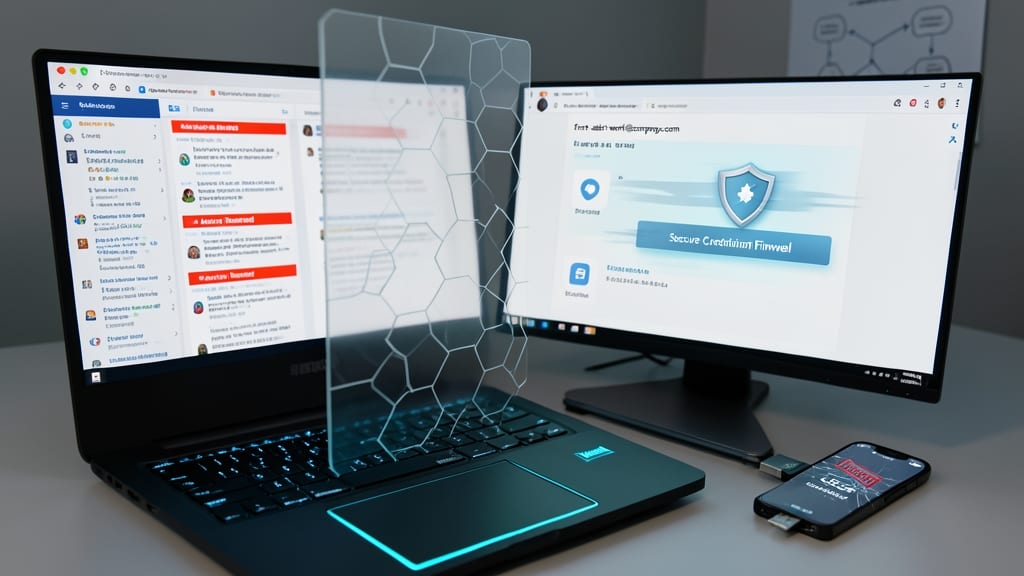
Your work email is the #1 target for business email compromise (BEC) scams—and most phishing attacks start with a single compromised credential. A dedicated work email alias creates a firewall between your personal life and corporate accounts, stopping credential stuffing before it begins.
Set up a free alias (like yourname+work@yourdomain.com) and forward it to your primary work inbox. Tools like Gmail filters or Microsoft 365 aliases make this effortless—just configure rules to auto-sort messages. This keeps your main account clean of personal subscriptions, reducing the attack surface for hackers who rely on reused passwords.
Perfect for remote workers who juggle personal errands alongside sensitive projects. It’s the digital equivalent of a separate phone line for work calls—simple, effective, and widely adopted by security-conscious teams. ✨
Enable Screen Lock with Strong PINs
Your device’s screen lock might feel like a minor detail, but a 6-digit PIN can be cracked in seconds using brute-force attacks—especially if your device is left unattended. Physical security is the first line of defense against theft or unauthorized access, making this one of the most overlooked yet critical steps for remote workers handling sensitive data.
Instead of relying on numeric PINs, opt for biometric authentication (fingerprint or face ID) for convenience and security, or set a 12+ character passphrase (like a short sentence) for devices storing confidential files. Most modern OSes (Windows Hello, macOS Touch ID, or Android’s Smart Lock) support these methods with zero-config setup, and they’re far harder to bypass than traditional PINs.
This is non-negotiable for finance professionals, healthcare workers, or anyone with client data—even a quick walk to the kitchen can leave your unlocked device vulnerable. Enable it now, and pair it with your existing security layers for a battle-tested setup. ✨
Regularly Audit Connected Devices
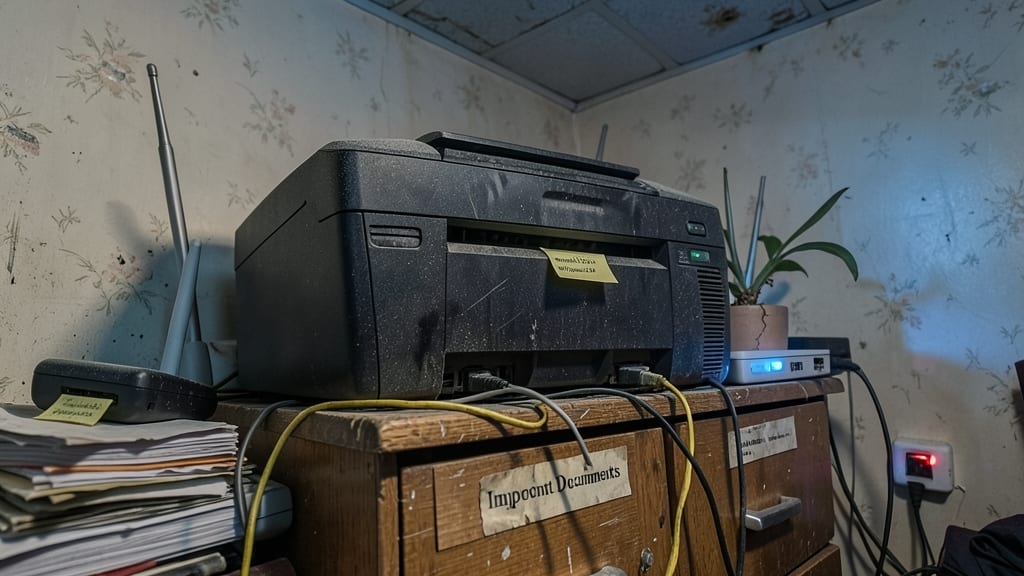
That old printer collecting dust in your home office might be a bigger security risk than you realize. Unused devices—from forgotten smart plugs to outdated software—often sit as unpatched backdoors waiting to be exploited in supply-chain attacks. A single compromised device can give hackers a foothold to move laterally across your entire network.
Use free tools like Fing (Windows/macOS) or Advanced IP Scanner to scan your network monthly for unknown devices. Look for unauthorized MAC addresses or unfamiliar names like "Unknown" or "Generic." Disconnect or update anything suspicious immediately—especially IoT gadgets with weak default passwords. Even a $20 smart bulb can become a gateway if left unsecured.
This habit is especially critical for remote workers handling sensitive data. Set a calendar reminder to audit devices quarterly—it takes just 10 minutes and could prevent a breach that takes months to detect. 💻