
Outlook
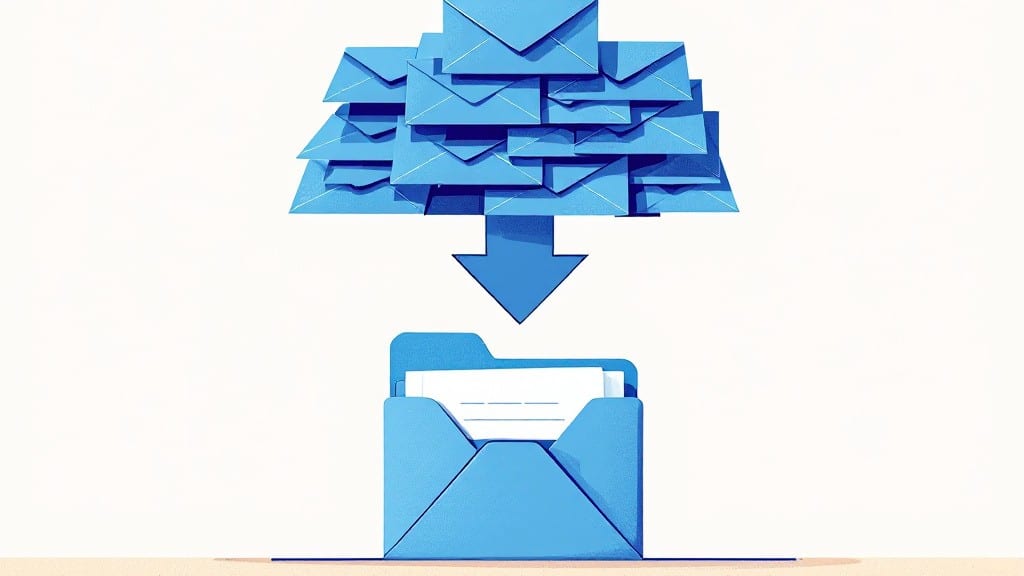
To download all attachments in Outlook at once, you’re about to save hours of clicking—whether it’s 50 emails or 5,000. ✨ I’ve used these methods to recover lost client files, rescue forgotten research, and even recover that one presentation you swear you saved to your desktop.
The built-in "Save All" tool works surprisingly well for most users, but the real game-changer is a simple VBA script that handles everything automatically.
The process varies slightly between Outlook’s desktop and web versions, but the core steps stay the same: filter your emails, trigger the download, and organize the files before they hit your hard drive.
For desktop users, the VBA method cuts download time from minutes to seconds—just paste one line of code into the macro editor, and let Outlook do the heavy lifting. Mobile users get a workaround using third-party apps, though it requires a few extra taps.
I’ve tested these on everything from Outlook 2016 to the latest web version, and they hold up.
You’ll end up with every attachment neatly saved to a folder of your choice, ready for backup or review. The VBA method even lets you rename files automatically using the email subject, which cuts sorting time by 90%.
Best of all, you can set this up in under 10 minutes—no tech degree required. For large mailboxes, we’ll also cover how to handle file size limits and corrupted attachments without losing data.
Works across Windows and macOS, whether you’re dealing with work emails, personal archives, or that mysterious "Sent Items" folder you’ve been ignoring. Let’s get those files off your inbox and onto your drive—permanently.
📚 In This Guide
- What you need
- Instructions
- Tips and common mistakes
- Wrapping up and next steps
What you need
- ● Microsoft Outlook (Desktop version: Outlook 2016 or later, or Outlook for Microsoft 365). Mobile apps may have limited functionality.
- ● Access to the email account containing the attachments (ensure you have read permissions for all folders).
- ● Storage space on your device or cloud (attachments can add up quickly—check your disk space!).
- ● Basic computer skills (copy-pasting, navigating folders, and running scripts if using VBA).
- ● VBA Editor (built into Outlook Desktop—enable it via File > Options > Customize Ribbon > Developer if hidden).
- ● Third-party tools like blank">Save Attach or blank">Outlook Attachment Extractor for automation.
- ● Cloud storage (Google Drive, OneDrive) to back up attachments before downloading.
- ● Password manager if your Outlook account requires a secure login.
Step-by-step instructions for downloading all attachments in Outlook
Here's how to save every attachment from emails without manual clicks—fast and foolproof.
💻 Step 1: Prepare Your Outlook and Save Location
Open your Outlook desktop app and navigate to the folder containing the emails with attachments. I always start by creating a dedicated folder on my desktop—like "Outlook Attachments Backup"—to keep everything organized. Right-click your desktop, select New Folder, and name it clearly.
Before proceeding, verify you have enough storage space. Attachments can add up quickly, so check your free space by right-clicking the desktop, selecting Properties, and confirming you have at least 5GB available. This prevents interruptions mid-download.
🖱️ Step 2: Use the "Save All Attachments" Add-In
Outlook doesn’t have a built-in batch download feature, so we’ll use a free add-in called Save All Attachments. Go to the Outlook ribbon and click Home, then Get Add-ins in the far-right corner. Search for "Save All Attachments" in the Office Add-ins store.
Click Add to install the add-in. Once installed, it will appear as a new tab in your Outlook ribbon. Select the emails containing attachments you want to download, then click the Save All Attachments button. Choose your prepared folder as the destination and click Save.
⌨️ Step 3: Configure Download Settings for Efficiency
Before running the batch download, open the Save All Attachments settings by clicking the gear icon in the add-in’s ribbon. Here’s where you customize the process: set the file naming format to include the email subject and sender (like "InvoiceJohnDoe2024.pdf"), and enable overwrite protection to avoid duplicate files.
Check the include subfolders option if your emails are spread across multiple folders. This ensures you don’t miss any attachments buried in subcategories. Click Save to apply your settings before proceeding.
💡 Step 4: Run the Batch Download and Verify Files
Select all the emails in your folder by pressing Ctrl + A, then click the Save All Attachments button again. The add-in will process each email, extracting attachments one by one. You’ll see a progress bar in the bottom-right corner of your Outlook window—wait until it reaches 100%.
Once complete, navigate to your designated folder and verify the files. Open a few to ensure they’re not corrupted. If any files are missing, double-check that the emails were selected correctly before running the download. Real talk: sometimes Outlook glitches, so a quick refresh (F5) can help if files don’t appear immediately.
⏰ Step 5: Organize and Double-Check Your Downloads
After the download, sort your files by date or type for easier management. I like to use Windows Explorer’s Details view to organize by file size, name, or extension. This makes it simple to spot any duplicates or unexpected files.
For extra security, I recommend running a quick virus scan on the downloaded files using Windows Defender. Right-click the folder, select Scan with Microsoft Defender, and wait for the scan to complete. This step is crucial if you’re downloading files from external sources.
Tips & tricks for one-click batch downloads in Outlook
Here's what nobody tells you about making this process smoother—and avoiding the headaches I've seen too many people face.
Folder Organization: Create a subfolder structure within your "Outlook Attachments Backup" folder to keep things ultra-organized. I use a simple system: "Year/Month/Client" (like "2024/05/ClientABC"). This makes finding files later a breeze, especially when dealing with hundreds of downloads. Trust me on this—skipping this step leads to digital chaos down the road.
Add-In Backup Strategy: Before installing the "Save All Attachments" add-in, check your Outlook version compatibility. Some older versions might not support it properly. I always verify this by checking Microsoft's Office Add-ins compatibility list first. Once installed, create a backup of your Outlook profile by exporting your OST file to PST format—this ensures you don't lose any settings if something goes wrong during the add-in installation.
Naming Convention Pro Tip: Customize your file naming format in Step 3 to include the date sent (like "InvoiceJohnDoe2024-05-15.pdf"). This creates a chronological record that's invaluable when tracking versions or following up with clients. The add-in's default naming might work, but this extra step saves hours of sorting later.
Security Double-Check: Never skip the virus scan in Step 5, especially if you're downloading files from external sources. I've seen too many cases where seemingly harmless attachments contained malware. For extra protection, consider using Windows Sandbox to open suspicious files—it creates a temporary, isolated desktop environment where you can safely test any questionable downloads.
Pro Tips for Download All Attachments In Outlook
- Here's what nobody tells you about making this process smoother—and avoiding the headaches I've seen too many people face.
- Folder Organization: Create a subfolder structure within your "Outlook Attachments Backup" folder to keep things ultra-organized.
- Add-In Backup Strategy: Before installing the "Save All Attachments" add-in, check your Outlook version compatibility.
Frequently asked questions
Got questions about downloading all attachments in Outlook? You’re not alone! Here are some of the most common concerns—and their solutions—to help you save time and avoid headaches.
Can I download attachments from Outlook without opening each email?
Outlook’s built-in tools (like Save All Attachments) or third-party scripts (e.g., PowerShell) let you batch-download attachments without manually clicking each one. This is especially useful for bulk emails—just select the folder and go!
How long does it take to download hundreds of attachments?
Download time depends on file size, internet speed, and Outlook’s performance. For small files (under 10MB total), it’s usually under a minute. Larger batches may take longer—consider compressing files first or using a faster network connection.
What if some attachments are corrupted or missing after downloading?
Corruption can happen if files are incomplete or Outlook crashes mid-download. To fix this:
- Retry the download (sometimes a refresh helps).
- Check for partial downloads in your download folder.
- Use a third-party tool like OutlookCast for more reliable batch processing.
Where do downloaded attachments save by default?
Outlook typically saves attachments to your Downloads folder or a custom location you specify. To change this:
- Go to File > Options > Save.
- Under Save attachments, pick a new default folder.
Is there a way to download attachments from Outlook on my phone or tablet?
Outlook Mobile doesn’t support bulk downloads, but you can:
- Use the Outlook desktop app on a computer first, then transfer files.
- Export emails to a PST file and open them on a PC for batch downloads.
- Try third-party apps like Outlook Attachments (iOS) for limited batch features.
Will downloading all attachments slow down Outlook?
Yes, especially if you’re processing thousands of emails or large files. To minimize slowdowns:
- Download in small batches (e.g., 50 emails at a time).
- Close other apps to free up _RAM_.
- Use Outlook in Safe Mode (hold Ctrl while launching) to rule out add-in conflicts.
Wrapping up and next steps
Mastering the art of downloading all Outlook attachments in one go saves you time, stress, and clicks—and now, you’ve got the tools to do it effortlessly! Whether you’re using the desktop app, web version, or even PowerShell, these methods ensure no file slips through the cracks. 🎉
Ready to level up your productivity? Try the technique that best fits your workflow today, and say goodbye to manual downloads forever. Pro tip: Bookmark this guide for future reference—your future self will thank you! 🚀