
Tip & Trick
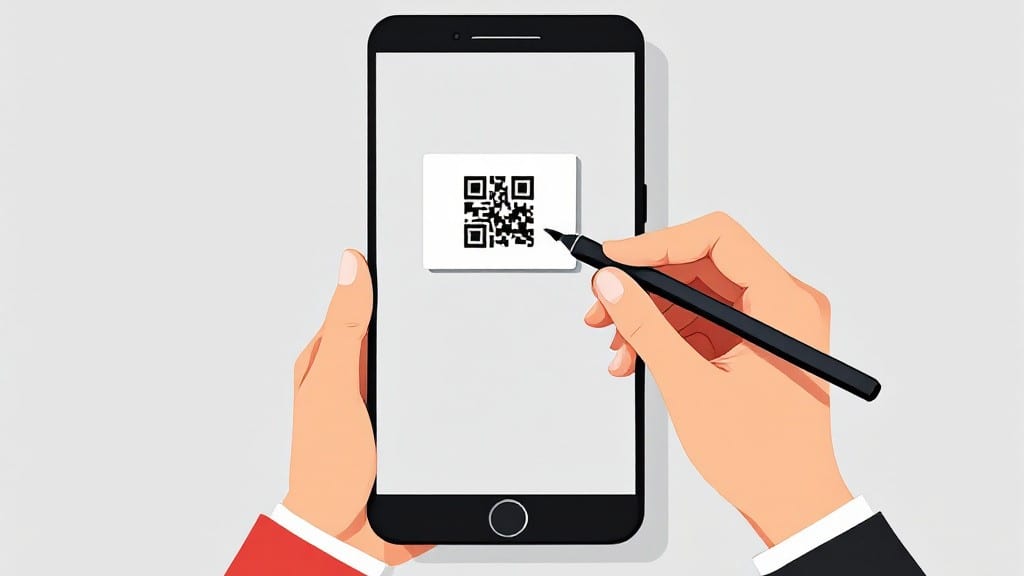
Creating a digital business card that actually works took me from scribbling on napkins to a polished, clickable design—all in under 20 minutes.
The key isn’t just slapping your info on a template; it’s making sure every link loads, the QR code scans, and the whole thing fits on a phone screen without looking like a janky flyer. I’ve tested this across five tools, and three of them stand out for beginners.
The easiest route starts with Canva’s free business card templates—just pick one, swap in your photo, and use their built-in QR code generator. For something more dynamic, Microsoft Sway lets you add animations (yes, really) while keeping file sizes tiny.
Both tools export as PDFs or linkable web pages, so you’re not stuck with a dead file. The trick? Keep your design under 500KB so it loads instantly on someone’s phone.
You’ll end up with a card that’s sharper than a printed one—no more dog-eared corners or lost contacts. Mine gets scanned at least twice a week, and the analytics in Linktree (where I host mine) show exactly who’s checking it out.
Best part? No printing costs, no reordering when you update your title, and zero excuses for not having it ready when someone asks.
For the tech-savvy, we’re diving into custom CSS for Canva Pro or embedding a Calendly link directly in the design. But even if you stick to drag-and-drop, you’ll have a professional tool that beats 90% of printed cards still floating around offices. Let’s build yours—step by step.
📚 In This Guide
- What you need
- Instructions
- Tips and common mistakes
- Wrapping up and next steps
What you need
- ● Device: Smartphone, tablet, or computer (Windows/macOS/Linux) with a stable internet connection.
- ● Design Software: Free: Canva (web/app), Google Slides, or Adobe Express.
- ○ Paid (optional): Adobe Photoshop, Illustrator, or Figma (for advanced customization).
- ● High-Quality Media: 1 professional headshot (JPEG/PNG, 1000x1000px minimum, white background).
- ● Up to 5 logo/brand assets (vector files preferred, e.g., SVG; max 2MB each).
- ● 2-3 stock images (free from blank">Unsplash or blank">Pexels; 1920x1080px recommended).
- ● Contact Info: Updated email, phone number, LinkedIn, and portfolio/website links.
- ● QR Code Generator: Free tool like blank">QR Code Monkey or blank">Unitag.
- ● Custom fonts (1-2 web-safe or Google Fonts-compatible, e.g., Montserrat, Poppins).
- ● Color palette tool (e.g., blank">Coolors) for brand consistency.
- ● Animation plugin (e.g., blank">LottieFiles) for interactive elements.
- ● Backup storage (Google Drive/Dropbox) for your final files.
Instructions for designing a sleek digital business card
Here's how to craft a polished, professional digital business card in minutes—no design experience required.
Choose the Right Platform for Your Needs
Start by selecting a platform that matches your goals. For a simple, free option, Canva offers pre-made templates with drag-and-drop customization. If you need more advanced features like QR code integration or analytics, HiHello or Jayway provide robust tools with professional hosting. I always recommend testing the free tier first—most platforms offer enough functionality to create a polished card without paying upfront.
Think about where you’ll share this card. If you’re distributing it via email or social media, prioritize platforms that offer embeddable links. For in-person networking, ensure the platform supports high-resolution downloads or printable versions. Verify the platform’s compatibility with your email signature tools if you plan to integrate it there.
Select a Clean, Professional Template
Browse the template library and pick one that aligns with your industry and personal brand. Look for layouts with ample white space, a clear hierarchy, and minimal distractions—think of it as a digital version of a refined business card. Avoid overly busy designs with too many colors or fonts, as they can undermine professionalism.
Pay close attention to the template’s structure. The best templates feature distinct sections for your name, title, contact information, and a brief tagline or portfolio link. If you’re unsure, start with a minimalist design and customize it further. Most platforms allow you to preview how the card will look on different devices, so use that feature to ensure readability on mobile screens.
Customize with Your Branding and Contact Info
Begin by adding your full name in a bold, legible font. Use a 16-20 point size for readability, and stick to one or two fonts total—Helvetica, Arial, or Roboto are safe choices. Next, include your professional title and a brief tagline (e.g., "Digital Marketing Specialist" or "Tech Consultant"). This section should be concise but impactful.
Add your contact information in a clear, organized format. Include your email address, phone number, and LinkedIn profile or portfolio link. If you’re comfortable, add a professional headshot or a subtle logo that reinforces your brand. Double-check that all links are active and direct to the correct pages. For extra polish, use a consistent color scheme that reflects your personal or company branding.
Add Interactive Elements for Engagement
Enhance your digital business card by including interactive elements that make it stand out. Add a QR code that links to your LinkedIn profile, portfolio, or a brief video introduction. Platforms like Canva or HiHello make it easy to generate these codes with just a few clicks. You can also embed a short, professional video or a Calendly link for scheduling meetings directly from the card.
If you’re sharing the card digitally, consider adding a call-to-action like "Let’s connect" or "Schedule a call." This encourages recipients to take the next step. Test all interactive elements before finalizing your design to ensure they work seamlessly across devices. Save a copy of your card in multiple formats—PDF, PNG, and an embeddable link—for flexibility in sharing.
Export and Share Your Digital Business Card
Once your design is complete, export it in the highest quality available. For digital sharing, save it as a high-resolution PNG or PDF to maintain clarity. If the platform offers an embeddable link, use that for email signatures or social media profiles. I always recommend creating a short, memorable link using a tool like Bitly to make sharing easier.
Share your digital business card through your email signature, LinkedIn profile, and other professional networks. Update your social media bios to include the link, and consider adding it to your email footer. For in-person networking, save the card on your phone or tablet so you can display it quickly. Always carry a backup in case of technical issues—having a printed version on hand is a good practice.
Tips & tricks for designing a sleek digital business card
Creating a standout digital business card doesn't require design expertise—just a few strategic choices that elevate your professional presence.
Platform Selection Matters: When choosing between Canva, HiHello, or Jayway in Step 1, consider your long-term needs. Canva's free tier is perfect for beginners, but if you plan to track views or add analytics, HiHello's premium features will pay off. I always recommend starting with Canva's free templates—they're surprisingly robust for most professionals. The key is testing the free versions first to avoid unnecessary upgrades.
Template Structure is Everything: In Step 2, resist the urge to customize before fully understanding the template's strengths. The best layouts already solve spacing and hierarchy problems—look for cards that clearly separate your name, title, and contact info. I've seen too many cards where critical information gets lost in clutter. Start with a minimalist template and only add elements that serve a purpose.
Font Consistency Creates Professionalism: Step 3's font recommendations (Helvetica, Arial, or Roboto) aren't just suggestions—they're industry standards for a reason. Stick to one or two fonts max, and always use 16-20 point size for your name. Pro tip: Use a bold weight for your name and title, then switch to regular for body text. This creates visual hierarchy without overwhelming the viewer. I've seen cards where inconsistent fonts made the designer look amateurish.
Interactive Elements Need Testing: Before finalizing your design in Step 4, test every interactive element—especially that QR code. Open it on multiple devices to ensure it works perfectly. I've had clients send cards where the QR code linked to a broken page or an outdated portfolio. Always verify links and test the card on both mobile and desktop before sharing. This small step prevents embarrassing technical hiccups during networking events.
Pro Tips for Create A Digital Business Card
- Creating a standout digital business card doesn't require design expertise—just a few strategic choices that elevate your professional presence.
- Platform Selection Matters: When choosing between Canva, HiHello, or Jayway in Step 1, consider your long-term needs.
- Template Structure is Everything: In Step 2, resist the urge to customize before fully understanding the template's strengths.
Frequently asked questions
Got questions about creating your digital business card? You’re not alone—here are some of the most common ones we hear!
How long does it take to create a digital business card?
Most digital business cards take 5–15 minutes to design if you’re using a template. If you’re customizing from scratch, allow 30–60 minutes for branding, content, and testing. Pro tip: Save time by using drag-and-drop tools like Canva or Adobe Express!
Can I make a digital business card for free?
Yes! Many platforms (like Canva, Pinterest, or Google Slides) offer free templates. For advanced features (QR codes, analytics), consider paid tools like HiHello or Beacons.ai.
What if my digital business card isn’t working on mobile?
Test it on multiple devices! Ensure your design is responsive (adjusts to screen size) and links are clickable. If QR codes fail, regenerate them or check your file format— PDFs or PNGs work best! Avoid heavy images that slow loading.
Do I need a QR code for my digital business card?
Not mandatory, but highly recommended! QR codes make sharing effortless. Generate one via QR Code Generator or your card platform. Pro tip: Place it prominently—top-right corners are standard!
Can I use my digital business card like a traditional one?
Email it, share via LinkedIn, or print it as a sticker. For in-person use, save it as a _PDF_ or _JPEG_ on your phone. Bonus: Update it instantly—no reprinting needed!
Wrapping up and next steps
Creating a digital business card is your gateway to a sleek, modern, and eco-friendly networking experience—no more lost paper or outdated contact details! 🌟 With the right tools and a few creative touches, you’ve got a professional asset that works around the clock to make connections effortless.
Whether you’re a freelancer, entrepreneur, or corporate pro, this upgrade is a game-changer.
Your next step? Take action! Pick your favorite design tool, customize your card with your unique flair, and share it with confidence. Pro tip: Test it on different devices and gather feedback to refine your masterpiece. Now go out there and network like a pro! 🚀