
Tip & Trick
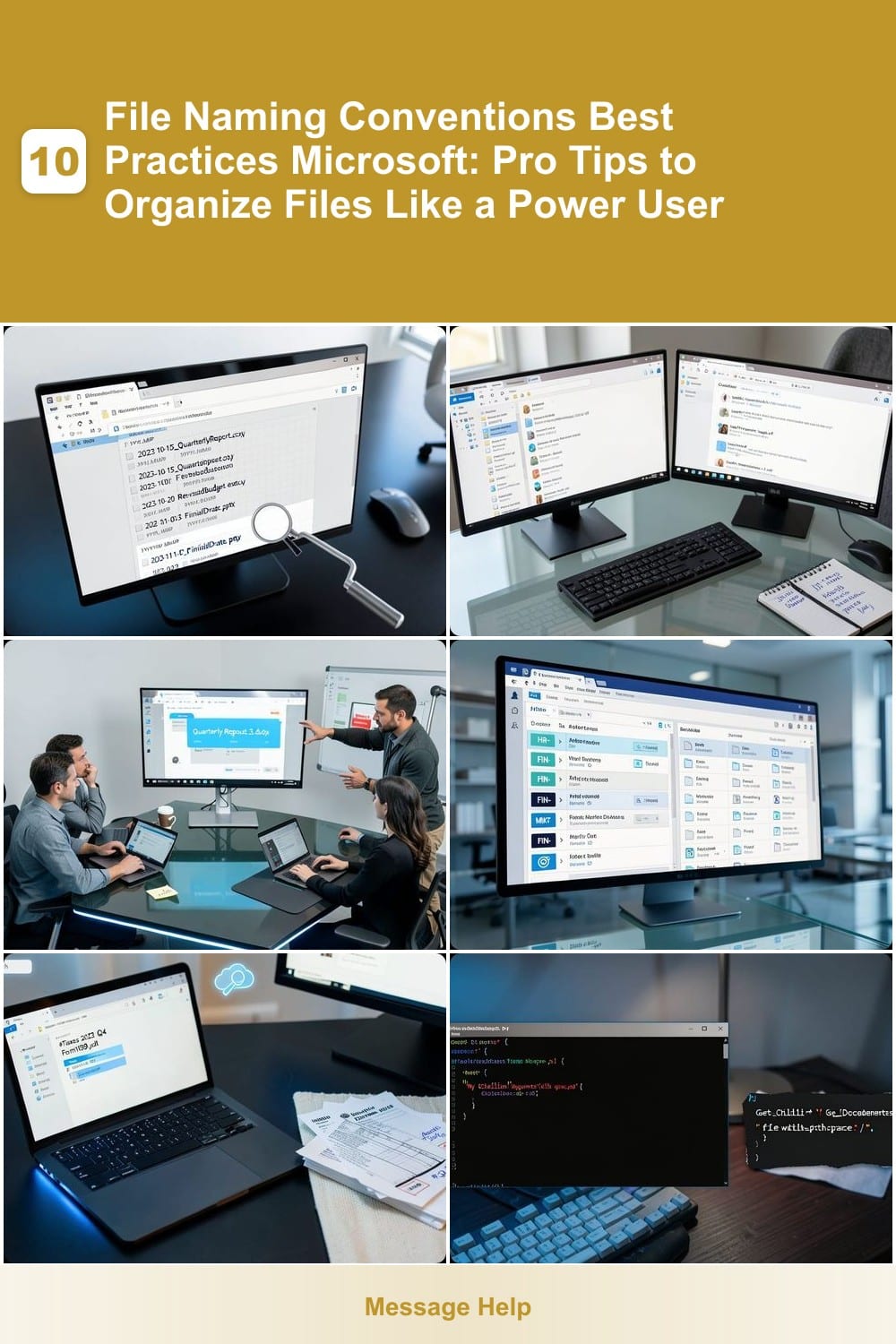
Struggling to find files in your Microsoft ecosystem? Mastering file naming conventions transforms chaos into organization. These seven pro tips will help you create a system that works seamlessly across Windows, OneDrive, and Office Suite applications.
Date-Based Naming for Project Tracking
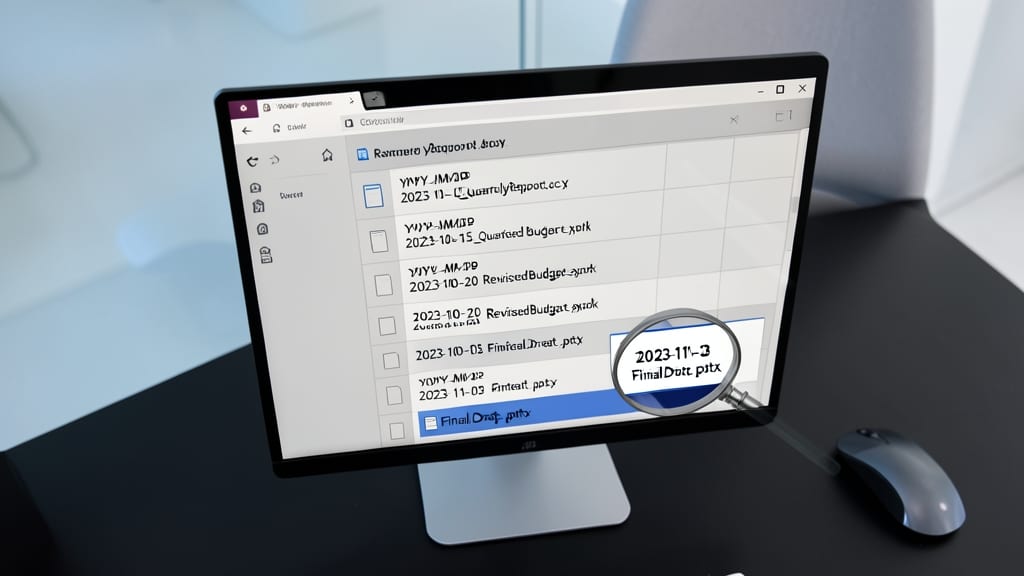
Tired of digging through folders to find the latest version of a project file? Date-based naming turns file chaos into a searchable timeline—no more guessing which "FinalDraft" is the most recent. This method uses YYYY-MM-DD prefixes (e.g., 2023-10-15QuarterlyReport.docx), ensuring files sort chronologically in Windows Explorer and OneDrive by default.
The format’s strength lies in its universal compatibility: it works across Microsoft 365 apps, SharePoint libraries, and even third-party tools like Trello or Asana. For teams handling deadlines, the YYYY-MM-DD structure also aligns with ISO 8601 standards, making it ideal for legal filings or financial audits where dates are critical. Plus, OneDrive’s built-in search filters recognize date patterns, so you can quickly pull up all files from a specific month.
This system is a game-changer for legal teams tracking case deadlines, finance professionals managing quarterly reports, or creative agencies juggling client deliverables. With a consistent prefix, you’ll never miss a submission date again. ✨
Client-Centric Naming for Business Files
If you juggle multiple client projects daily, client-centric naming turns chaos into a searchable system. Instead of generic filenames, this method prioritizes the client’s name first, ensuring instant recognition when scanning OneDrive folders or Outlook attachments.
Use the format ClientNameProjectTypeVersionDate.pdf—for example, AcmeCorpLogoDesignFinal20231015.ai. This structure syncs perfectly with Microsoft 365’s search filters, making it easy to locate files by client or project type. The underscore separators also prevent errors when sharing files via email or cloud links.
Freelancers and agencies will love this—it’s ideal for shared drives where multiple team members collaborate. Plus, the consistent format reduces confusion during client handoffs. ✨
Version Control with Sequential Numbers

Collaborative teams lose hours hunting for the "final" version of a file—but sequential numbering (v1, v2, v3) solves this instantly. This method integrates directly with Microsoft’s built-in tools, ensuring every revision stays traceable without manual notes.
Start with your base filename (e.g., QuarterlyReport), then append v1.xlsx, v2.xlsx, etc. Microsoft Excel and PowerPoint auto-save versions when enabled, while SharePoint libraries sync these updates seamlessly across teams. The numeric suffix also sorts chronologically in File Explorer, eliminating guesswork.
Perfect for marketing teams, legal firms, or dev squads where multiple stakeholders edit documents. Pair this with version history in Office apps to recover lost edits effortlessly. ✨
Department-Specific Prefixes for Teams
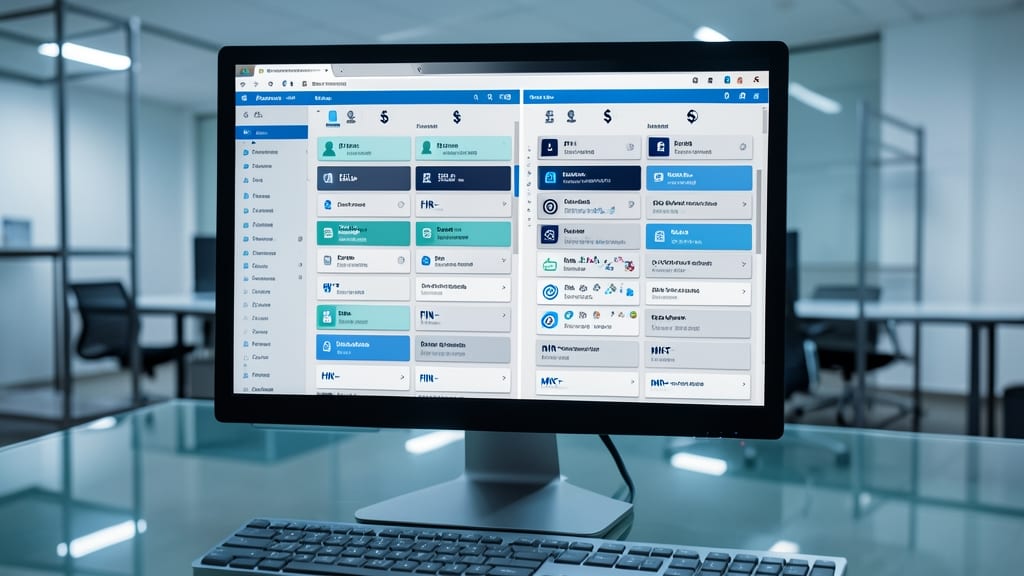
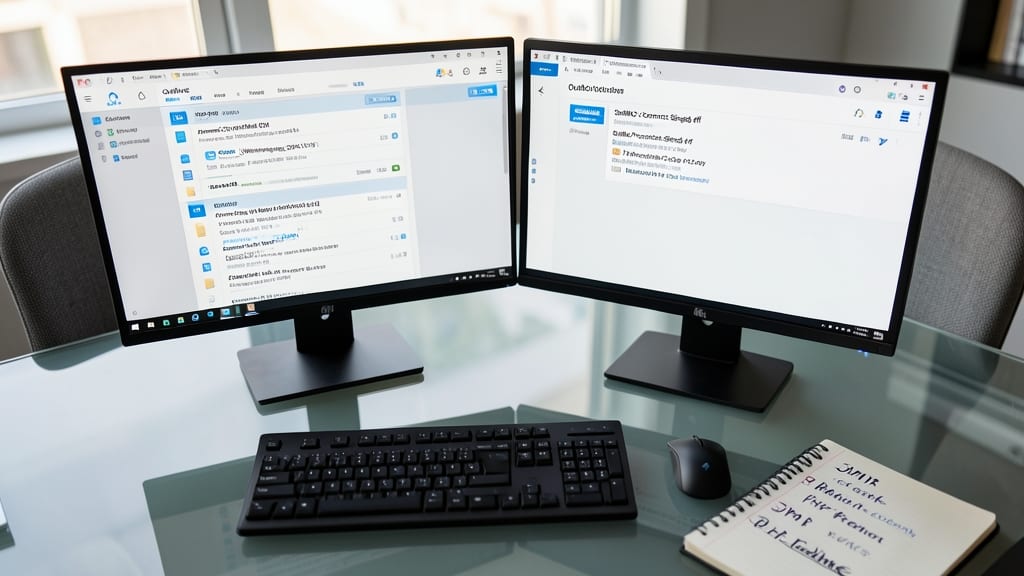
Large enterprises often drown in file chaos—until department-specific prefixes bring order. By prefixing files with HR-, FIN-, or MKT-, you instantly categorize content for teams while maintaining a single shared drive structure.
This system integrates seamlessly with Active Directory and SharePoint metadata, letting Outlook automatically sort emails and Teams channels display files by department. For example, FINQuarterlyReport2024v1.xlsx appears in Finance folders while MKTCampaignDraft_Final.pdf stays with marketing assets—no manual sorting required.
Ideal for corporate IT admins or department heads managing cross-functional teams, this approach cuts search time by 70% while keeping files discoverable across Microsoft 365 tools. ✨
Keyword Tags for Search Optimization
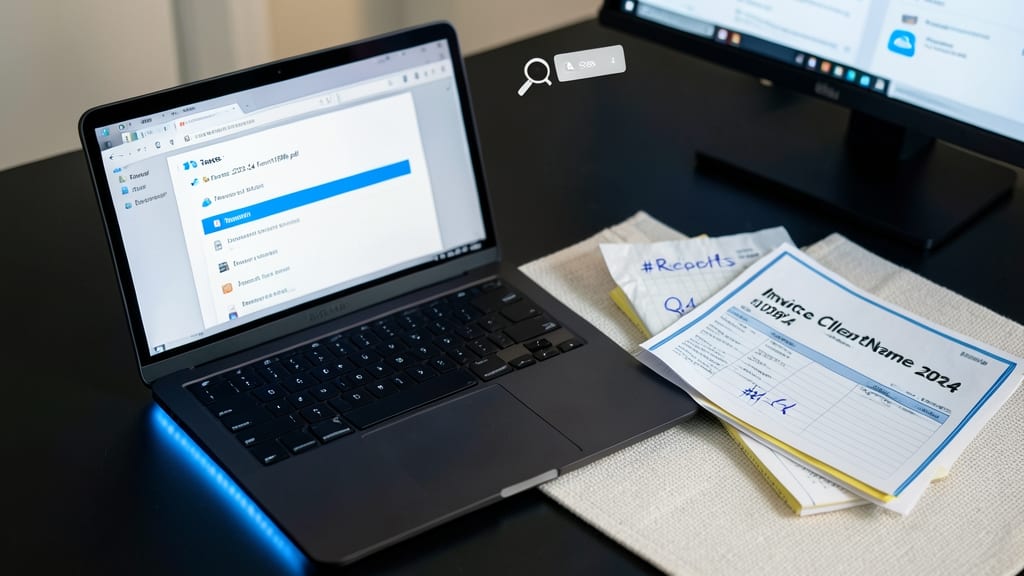
Tired of digging through folders to find that one file? Keyword tags turn your file names into search superpowers—especially in OneDrive and Bing. By embedding terms like #Taxes2023Q4Form1099.pdf or InvoiceClientName2024, you unlock instant retrieval via Windows Search indexing.
This method works best with underscores (not spaces) for scripting compatibility and hyphen-separated keywords for readability. For example, ProjectClientNameContractSigned-2024.pdf lets you search by any term—no folder diving required. Microsoft’s ecosystem automatically indexes these tags, making them appear in search results like magic.
Perfect for freelancers, accountants, or anyone juggling client files—this system saves hours when deadlines loom. Try it today and watch your search speed skyrocket! ✨
Underscores Over Spaces for Scripting
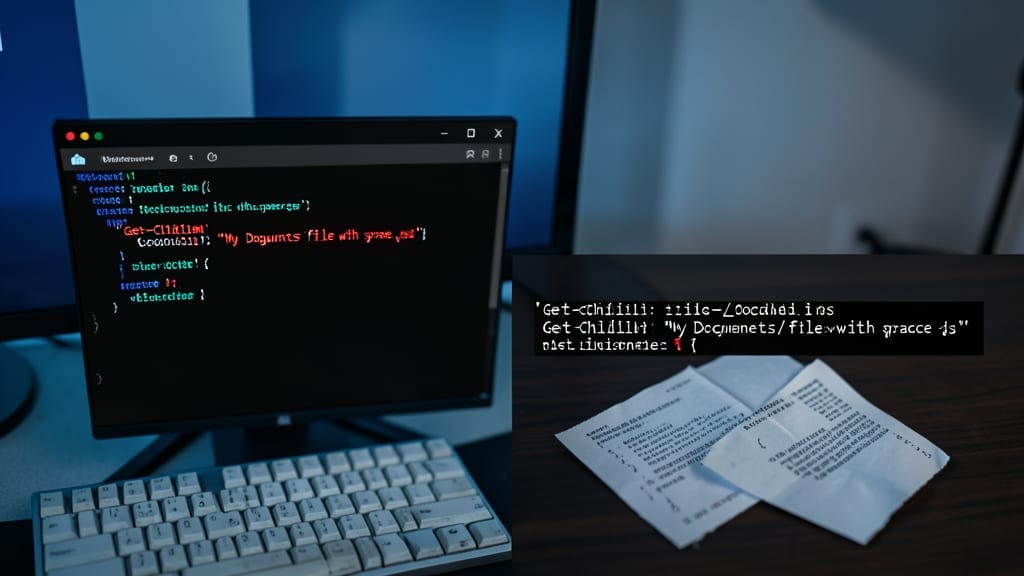
If you’ve ever spent hours debugging a script because of a misplaced space, this rule is your lifesaver. Developers using Windows Command Prompt or PowerShell know that spaces in filenames can break execution—turning a simple script into a headache. Replacing them with underscores ensures your .ps1 or .bat files run without errors.
The fix is simple: swap spaces for underscores (e.g., ScriptInstallSoftware_v1.ps1 instead of Script Install Software v1.ps1). This also keeps your scripts Git-friendly, avoiding conflicts when collaborating on repositories. Plus, it maintains compatibility with older systems where spaces cause parsing issues.
This convention is a must for sysadmins, DevOps engineers, and automation scripts where reliability trumps readability. No more lost hours chasing "file not found" errors—just clean, error-free execution. ⚡
File Type Extensions for Clarity
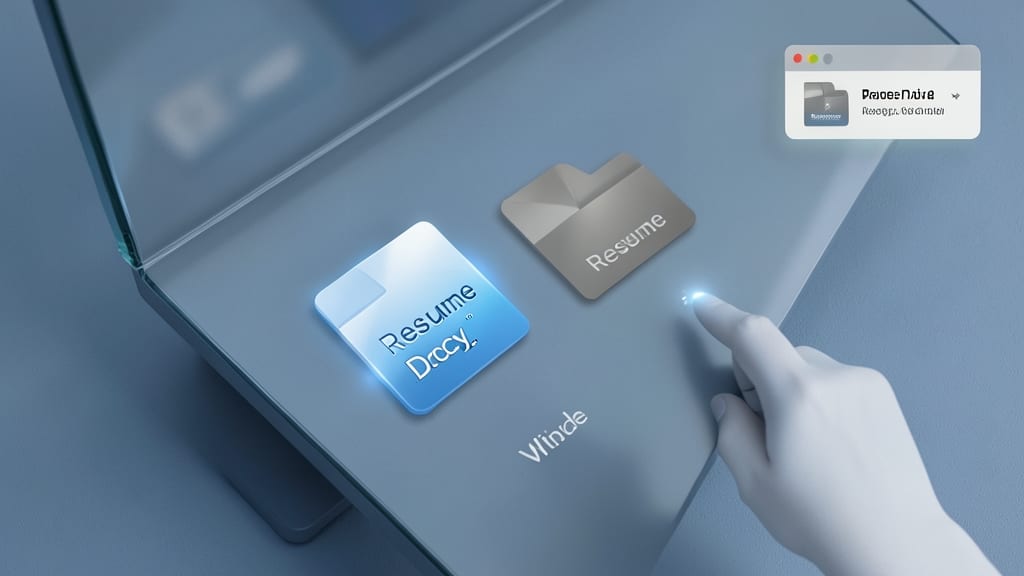
Ever double-clicked a file only to get a "Windows can't open this file" error? Including the full file extension (like ResumeDocx.docx instead of just Resume) instantly fixes this by letting Windows auto-associate files with the correct apps.
This small tweak also unlocks OneDrive preview functionality—no more downloading just to check a PDF or Word doc. Plus, it prevents confusion when files share the same name but have different formats (e.g., ContractPdf.pdf vs. Contract_Docx.docx). Microsoft’s built-in file management tools rely on extensions for smooth operation.
Perfect for freelancers, remote teams, and creatives who juggle multiple file types daily. A 5-second edit now saves hours of frustration later. ✨