
Software
Microsoft Teams isn’t just for professionals—it’s a powerful tool for students to streamline group projects, improve communication, and stay organized. These 10 benefits prove why Teams should be your go-to platform for academic success and seamless collaboration.
Real-Time Group Project Collaboration
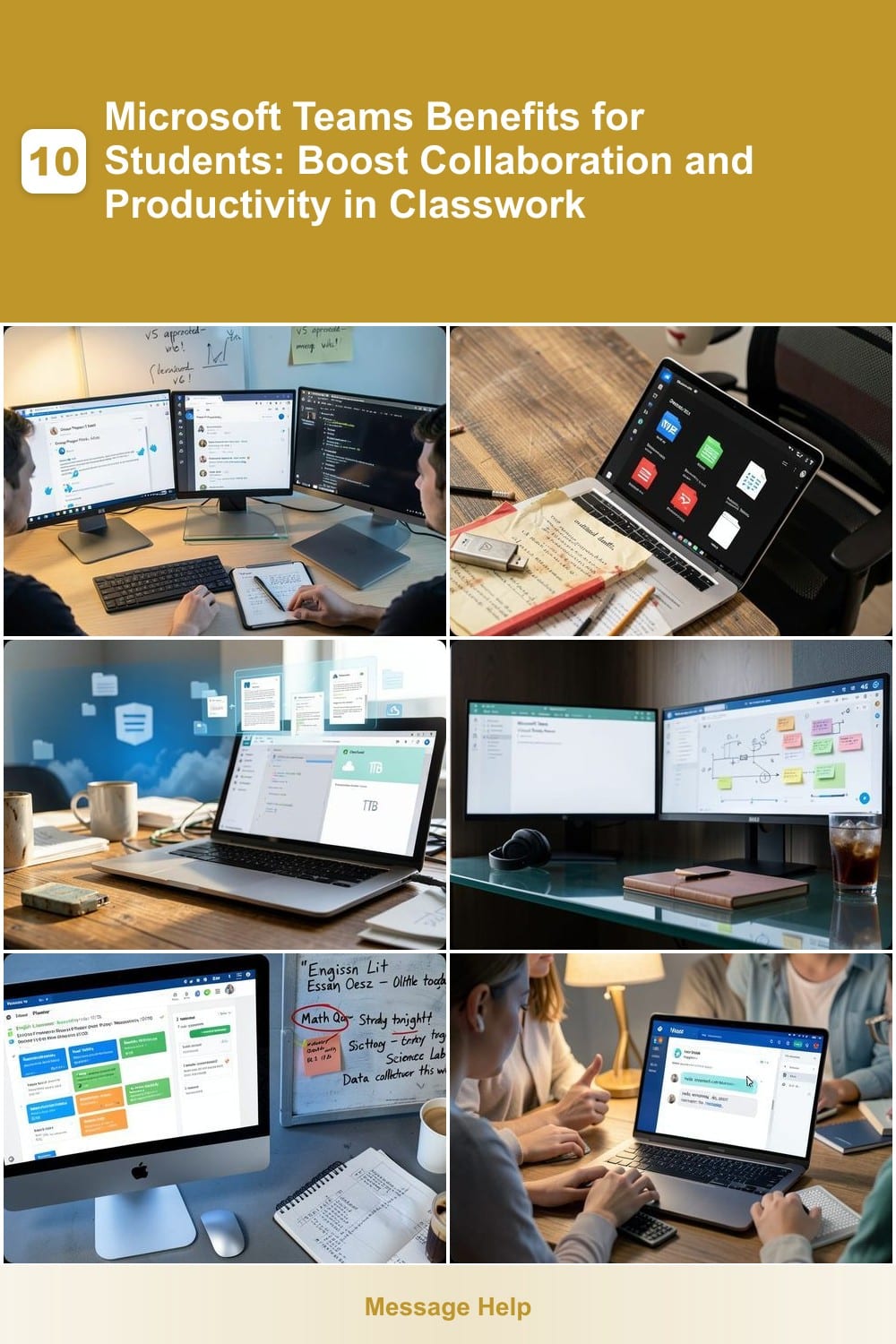
Tired of endless email threads where the latest version of your group project gets buried under replies like "Can you check v5finalactually_final.docx?" Microsoft Teams eliminates version confusion by letting your entire team edit shared documents, presentations, and assignments in real time—all in one centralized hub.
With simultaneous editing (like Google Docs but with Office 365 integration), multiple students can type, comment, or revise the same Word doc, Excel spreadsheet, or PowerPoint deck without overwriting each other. Need to reference last week’s slides during a brainstorm? Drag the file into your dedicated team channel, and everyone sees the same version—no more "I thought we were using the other one" debates. The platform also tracks changes in real time, so you can instantly see who made edits and when.
Perfect for group projects, research teams, or study groups, this feature turns chaotic collaboration into a smooth, organized process. Whether you're drafting a thesis or designing a presentation, Teams keeps everyone on the same page—literally. 💻
Seamless Integration with Office 365
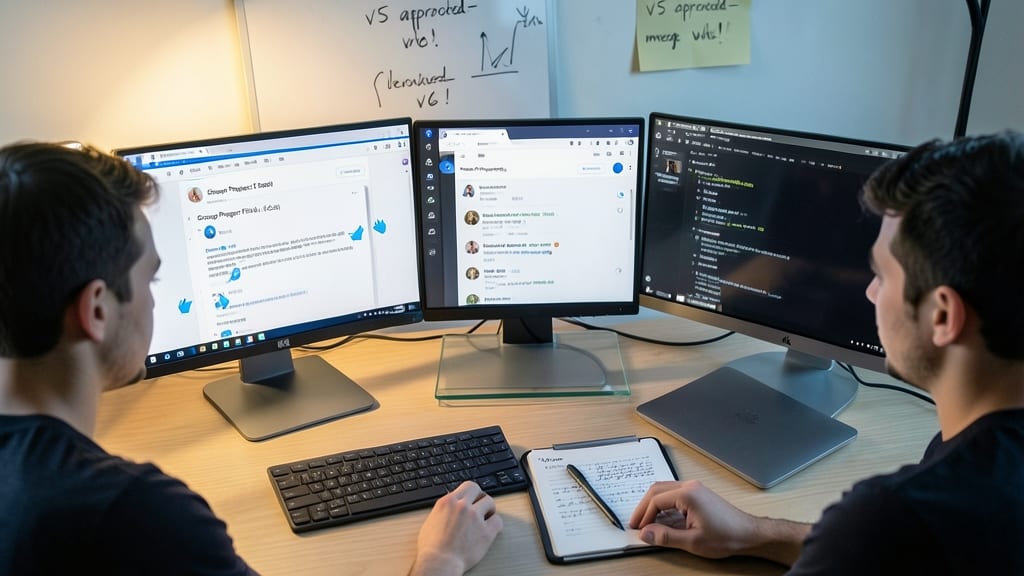
Ever lost hours hunting for the latest version of a group project file—only to find outdated drafts scattered across emails and USB drives? Microsoft Teams eliminates that frustration by seamlessly integrating with Office 365, giving you direct access to Word, Excel, PowerPoint, and OneNote without compatibility headaches.
Open a shared Excel spreadsheet in Teams, make edits, and watch changes sync instantly across all team members’ devices. Need to reference last week’s PowerPoint slides during a brainstorm? Drag the file into your chat, and everyone sees the same version—no more “I saved it as v3finalreally_final.docx” chaos. The integration also ensures your files stay corruption-free, with automatic backups and version history tracking every change.
This is a game-changer for research groups, design teams, or study partners working across different devices. Whether you’re typing notes on your phone or crunching data on a desktop, your work stays consistent, accessible, and stress-free. ⚡
Secure File Sharing and Storage
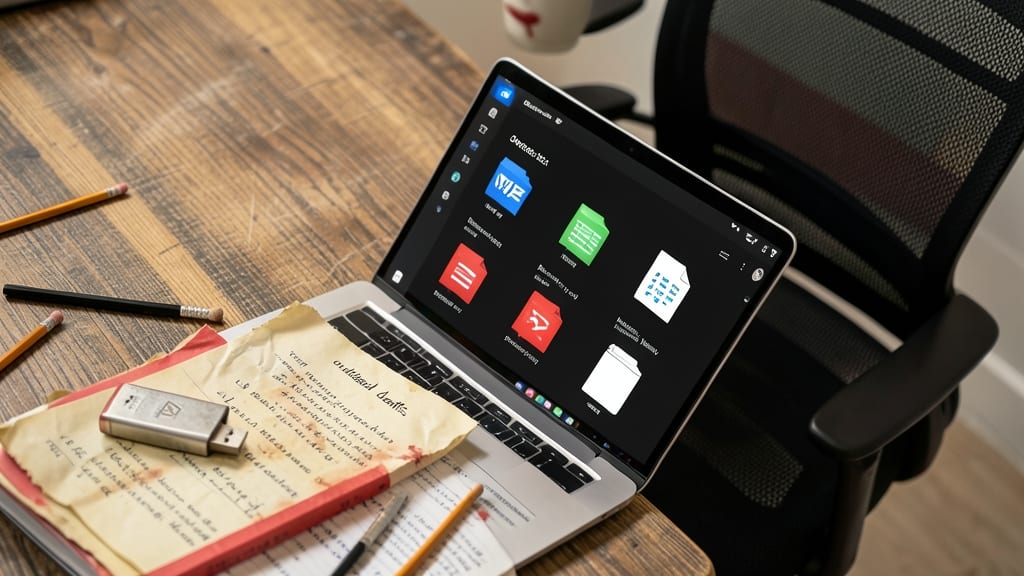
Tired of losing group project files to lost USB drives or corrupted downloads? Microsoft Teams’ OneDrive integration gives you 1TB of secure cloud storage per user, so every version of your presentation, research paper, or code file stays safe—and accessible to your team.
With real-time syncing, multiple students can edit the same document without overwriting each other’s work. End-to-end encryption keeps sensitive assignments protected, while automatic backups ensure you never lose progress. Need to share a large file? Drag-and-drop it directly into Teams chats or channels—no email size limits or confusing attachments.
Perfect for group projects, research teams, or study groups, this feature turns chaos into organization. Whether you’re collaborating on a 100-page thesis or a multi-media presentation, your files stay where they belong—secure, updated, and ready to go. ✨
Virtual Study Rooms for Focused Work
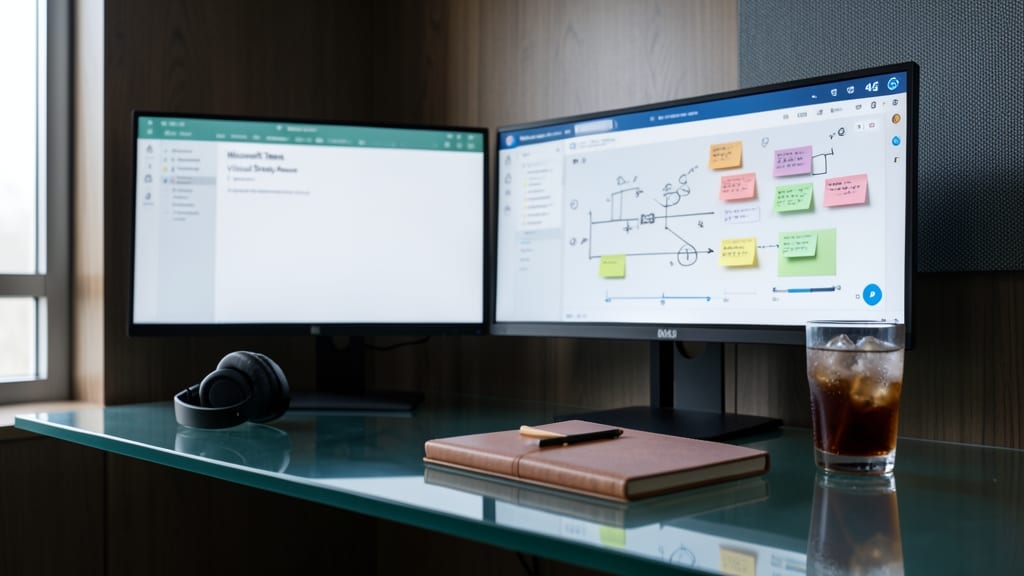
Need a quiet space to tackle group projects without distractions? Microsoft Teams’ Virtual Study Rooms let you and your classmates book private, focused sessions—think of them as digital library carrels, but with screen sharing and collaborative whiteboards.
With 24/7 availability and customizable time slots, you can reserve a room for brainstorming, coding sprints, or exam prep. The built-in whiteboard tool lets you sketch diagrams, map out ideas, or solve equations together in real time—no sticky notes or whiteboard erasers required.
Perfect for study groups, hackathons, or language practice sessions, these rooms keep everyone on task while making collaboration feel personal. 💻
Built-In Task and Deadline Management
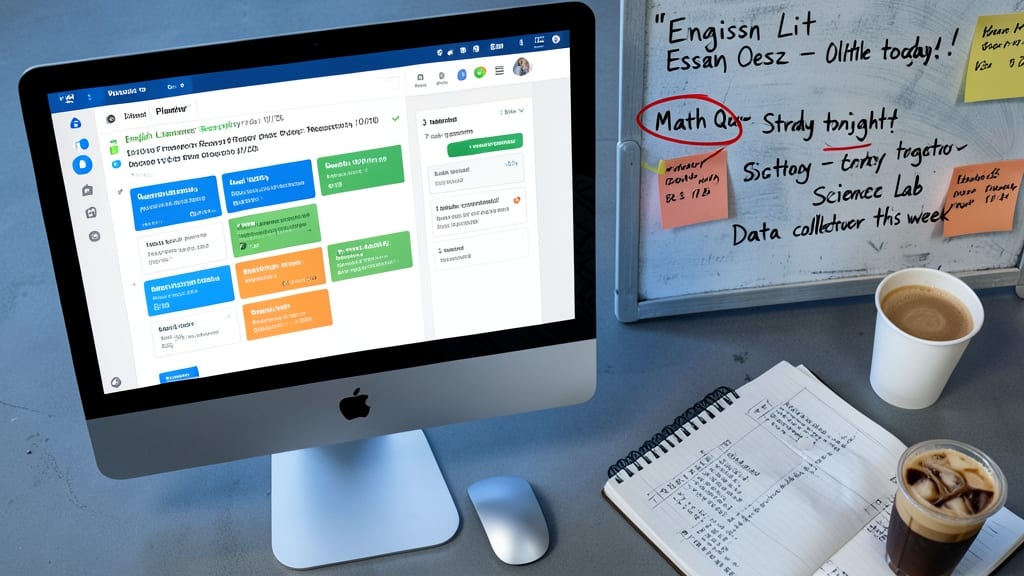
Juggling five classes, group projects, and exams can feel like herding cats—but Microsoft Teams’ Planner integration turns chaos into clarity. This built-in task manager lets you create shared to-do lists, assign deadlines, and track progress in real time, so no one misses a submission or forgets their part of the project.
The drag-and-drop interface makes organizing assignments effortless, while color-coded labels (like "History Paper" or "Biology Lab Report") help you prioritize tasks at a glance. You can even set recurring deadlines for weekly assignments or break larger projects into milestones—no more scrambling the night before. The best part? It syncs with your Outlook calendar, so deadlines appear alongside your class schedule.
Perfect for students who thrive on structure, Planner eliminates the guesswork of balancing workloads. Whether you’re a night owl or an early bird, this tool keeps you on track without the stress. ✨
Accessibility Features for All Learners
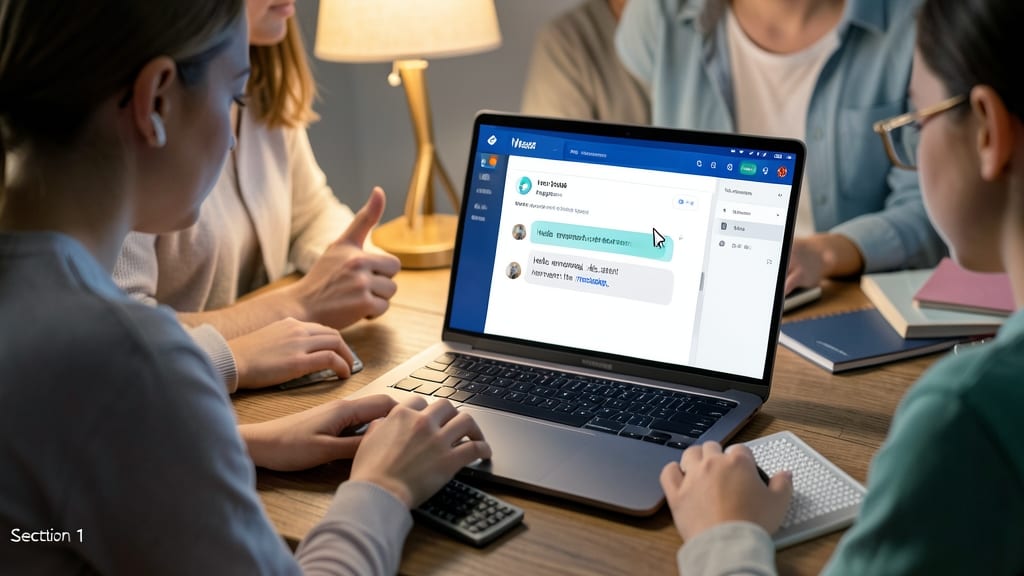
What if your study tools could adapt to your needs—not the other way around? Microsoft Teams includes built-in accessibility features designed to ensure every student, regardless of ability, can fully participate in class discussions, group projects, and virtual lectures.
With text-to-speech for auditory learners, screen reader compatibility for visual impairments, and customizable high-contrast themes, Teams removes barriers to engagement. The platform also supports keyboard shortcuts for motor skill challenges and even lets you adjust font sizes or enable live captions during calls—no extra apps required. These tools ensure lectures, assignments, and collaborations stay inclusive without sacrificing functionality.
Ideal for students with disabilities, neurodivergent learners, or those who simply prefer alternative input methods, Teams makes education more equitable for all. ✨
Mobile-Friendly for On-the-Go Students

Between classes, commutes, or study breaks, your phone is your most reliable tool—and Microsoft Teams makes it your collaboration powerhouse. The mobile app delivers full desktop functionality, so you can join class discussions, submit assignments, or reply to group chats without ever reaching for a laptop.
With real-time notifications, file previews, and in-app editing for Office documents, you stay productive whether you’re waiting for the bus or grabbing coffee. The app even supports video calls and screen sharing, turning your smartphone into a portable meeting hub. Plus, offline mode lets you access files and messages when Wi-Fi is spotty.
Ideal for commuters, part-time students, or anyone balancing multiple responsibilities, Teams on mobile keeps you connected—no excuses. ✨
Automated Meeting Notes and Transcripts

Forget scrambling to take notes during lectures or group meetings—Microsoft Teams’ AI-powered meeting transcripts automatically capture every word, speaker, and key discussion point. This feature transforms passive listening into an actionable resource, with searchable text and timestamps that let you revisit critical details in seconds.
The automatic summaries highlight action items, decisions, and deadlines, so you never miss a follow-up or assignment detail. Whether reviewing notes for a group presentation or studying for an exam, these transcripts save hours of manual note-taking. The real-time captions also make meetings more inclusive for students who rely on text-based learning.
Perfect for study groups, research teams, or project discussions, this tool turns chaotic meetings into structured, reviewable content—without lifting a finger. ✨
Customizable Notifications for Productivity
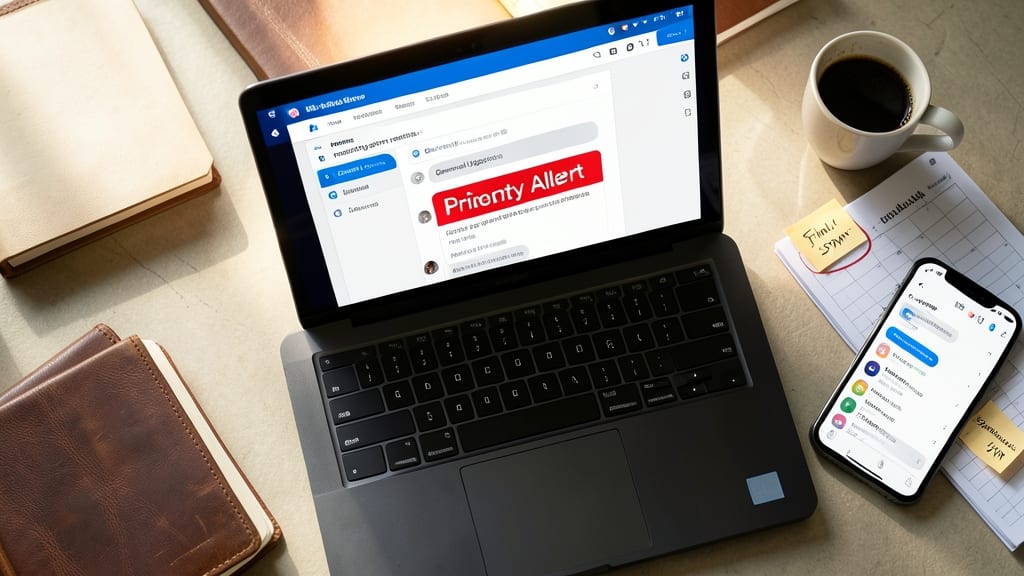
Drowning in notifications but still need to stay on top of group project deadlines? Microsoft Teams lets you fine-tune alerts to match your workflow—so you never miss a submission while avoiding the chaos of constant pings.
Adjust notification levels per chat or channel (e.g., priority alerts only for @mentions or assignment tags), mute distractions during study sessions, or set focus hours where Teams stays quiet. The app even lets you snooze notifications for up to 8 hours—perfect for exam prep or late-night coding sprints.
This feature is a lifesaver for students juggling multiple groups, ensuring you stay productive without feeling overwhelmed. ✨
Free for Students with Education Accounts

Worried about the cost of premium collaboration tools? Microsoft Teams removes that barrier entirely for students. With an Office 365 Education account—often provided for free through your school—you unlock full access to Teams, including all its advanced features, without paying a dime.
This means no subscription fees, no hidden charges, and no compromises on functionality. You get 10GB of cloud storage per user, 250 participants per meeting, and advanced security controls—all included. Whether you're working on group projects or virtual study sessions, the same professional-grade tools used by businesses are now at your fingertips.
Perfect for students on tight budgets, this benefit ensures everyone—from undergrads to grad students—can collaborate efficiently without financial stress. 💻