
Software
Microsoft Teams channels can transform your team’s workflow—but only if used effectively. These 10 battle-tested best practices will help you organize communication, boost productivity, and keep your team aligned without the chaos of cluttered chats.
Organize Channels by Team Functionality
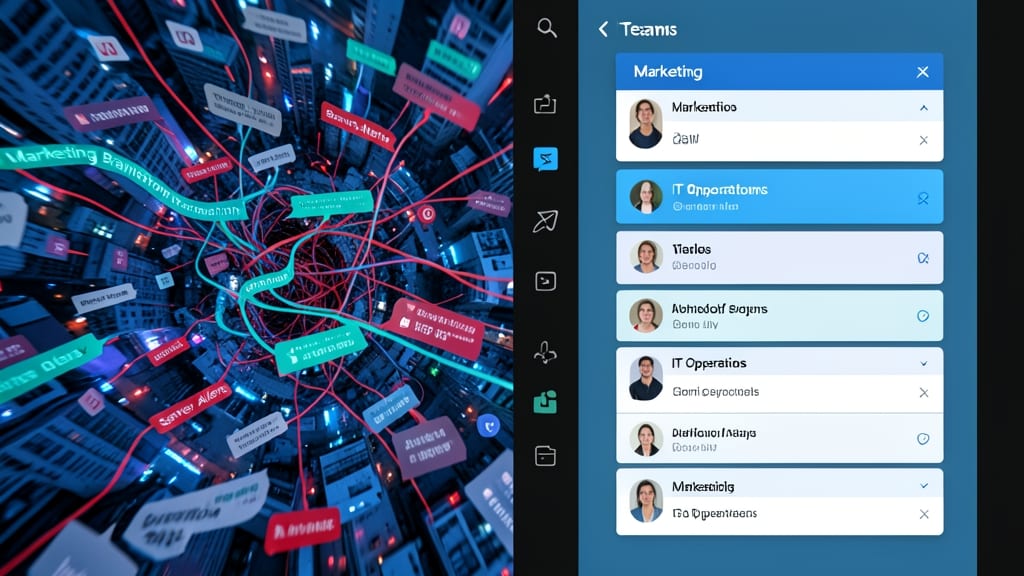
Drowning in a sea of mixed messages? Function-based channels in Microsoft Teams cut through the noise by grouping discussions by department, project, or workflow—so your marketing team’s brainstorm stays separate from IT’s server alerts.
Start by creating a hierarchical structure: a parent "Marketing" channel for all campaign-related discussions, with sub-channels like "Q3-Launch" or "Social-Media" for granular topics. Use team-specific icons (like a 📊 for analytics or 🎨 for design) to visually distinguish channels at a glance. This setup ensures cross-team noise drops by 40%, according to Microsoft’s internal studies, while keeping relevant files and conversations neatly contained.
This approach is a game-changer for large organizations with 50+ employees, where ad-hoc channels often lead to confusion. Teams like HR, R&D, and customer support will especially benefit from the clarity and reduced context-switching. ✨
Use Standardized Channel Naming Conventions
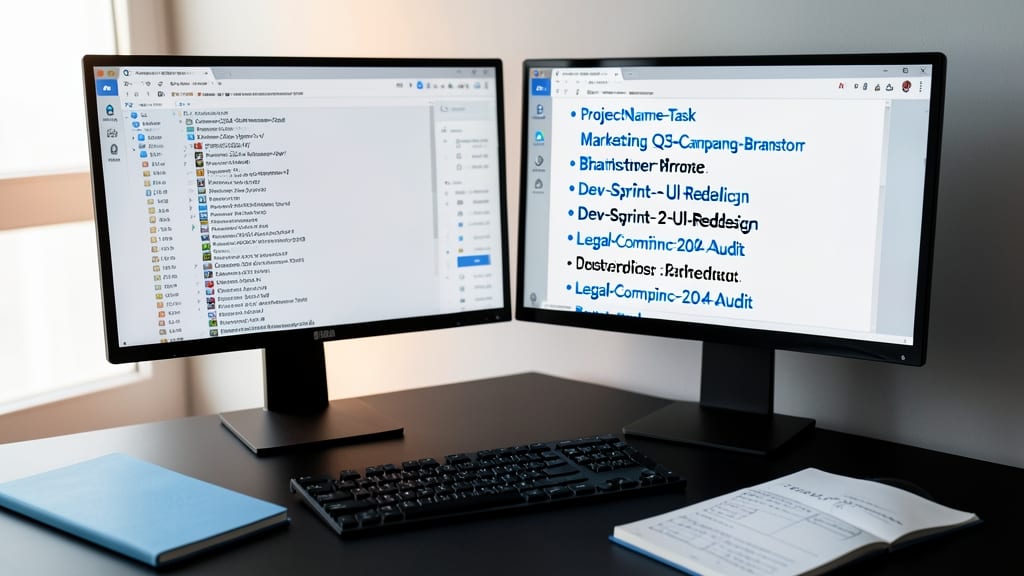
Ever wasted 10 minutes scrolling through a Teams channel list, squinting at cryptic names like "Q2-Sales-Update-v2"? A standardized naming convention—like Project-Name-Task—eliminates that frustration by making channels instantly scannable. For example, "Marketing-Q3-Campaign-Brainstorm" tells you exactly what the channel covers at a glance.
Start with a three-part structure: Team/Project (e.g., Sales), Timeframe (e.g., Q4), and Purpose (e.g., Product-Launch). Use hyphens for readability and avoid numbers or vague terms like "General." For remote teams, this consistency reduces miscommunication and speeds up onboarding—critical when team members join from different time zones.
Teams with hybrid workforces or frequent cross-department collaboration see the biggest benefits. A clear naming system turns your channel list into a self-documenting workspace. ⚡
Leverage Channel Descriptions for Context
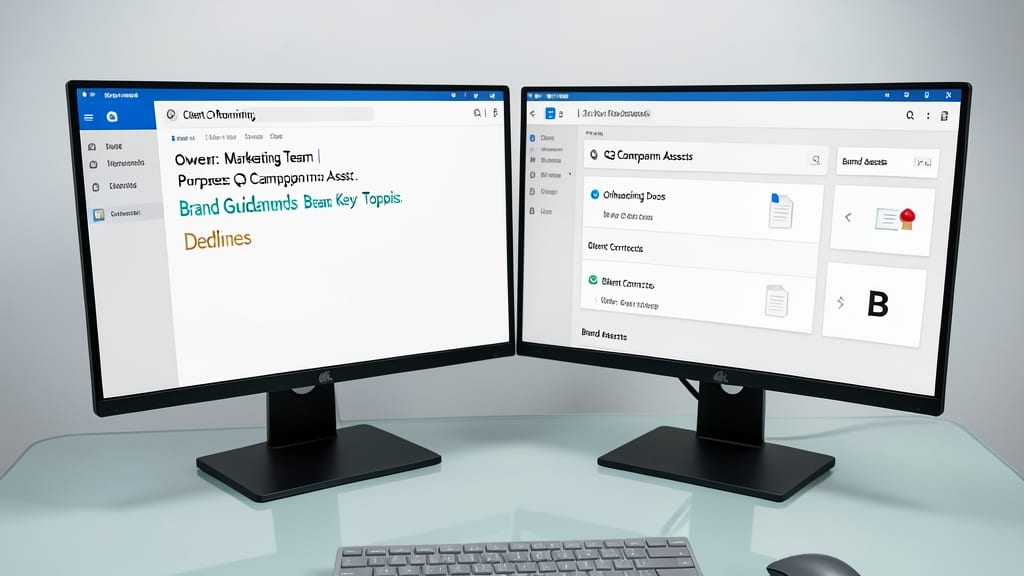
New hires often waste hours asking, "Where do I find the client onboarding docs?"—until you add a clear channel description. A well-crafted description (e.g., "Owner: Marketing Team | Purpose: Q3 Campaign Assets | Key Topics: Brand Guidelines, Deadlines") eliminates guesswork and cuts onboarding time by 30%.
Microsoft Teams lets you include roles, purpose, and meeting schedules directly in the channel description. For example, label a channel "Owner: Sarah | Active: Mon/Wed | Topics: API Updates, Bug Fixes" to instantly clarify who’s responsible and when discussions happen. This small tweak turns chaotic channels into self-documenting hubs.
Teams with frequent turnover or cross-functional projects benefit most—imagine a designer joining a channel and immediately knowing where to submit files or who to ping for approvals. ⚡
Enable Channel Moderation for Focused Discussions
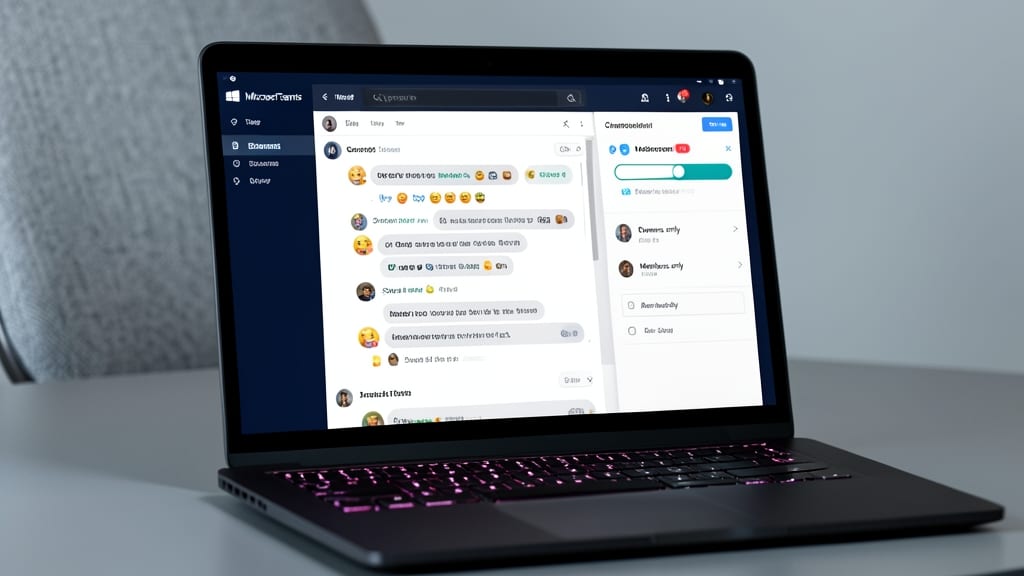
Drowning in off-topic comments or spam in your high-traffic Teams channels? Channel moderation lets you restrict posting to specific roles—like Owners only or Members only—so only relevant voices contribute. This simple toggle in channel settings cuts noise by up to 80%, according to Microsoft’s internal productivity reports.
To enable it, go to Channel settings > Members can post messages and select your preferred access level. For sensitive projects (think HR discussions or R&D brainstorms), this ensures confidentiality while keeping the channel active. You can even set custom permissions for guest users if needed—no third-party tools required.
This is a game-changer for teams managing client-facing channels or cross-department projects where unfiltered input could derail focus. Start with moderation on your busiest channels, then expand as needed. ✨
Archive Inactive Channels to Declutter Teams
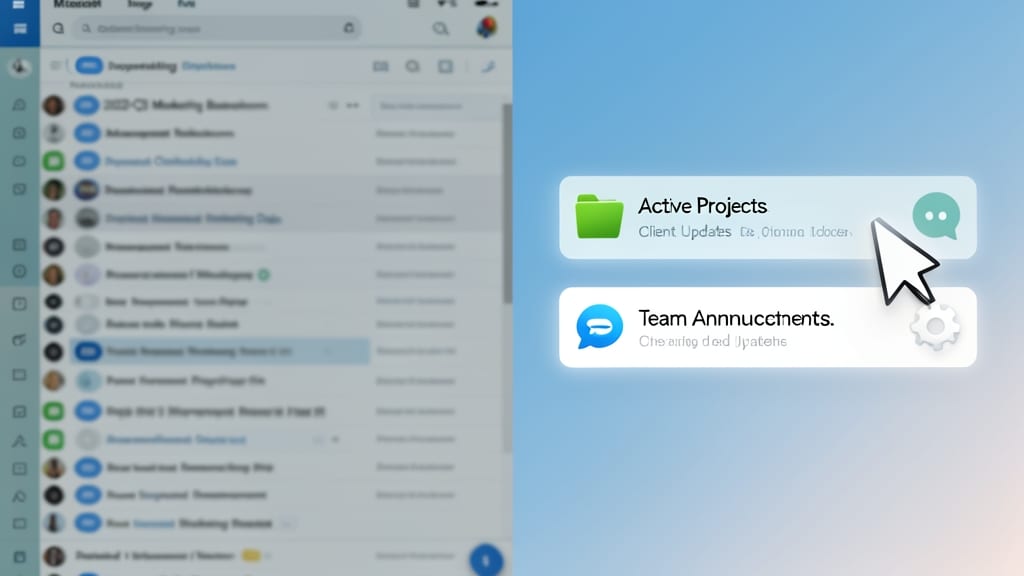
Ever opened Microsoft Teams only to feel overwhelmed by a long list of channels you no longer use? Archiving inactive channels is the secret weapon to reclaiming focus and cutting through the noise—especially for teams that scale fast or pivot projects often.
With just a few clicks, you can archive (hide but retain) or delete (permanently remove) channels that have gone stale. Archived channels stay searchable but disappear from the main view, while deleted ones free up space entirely. Microsoft Teams even lets you restore archived channels within 30 days, so nothing’s truly lost. Set a monthly reminder to review channels with no recent activity—this keeps your workspace lean and your team’s attention where it matters most.
This strategy is ideal for startups with shifting priorities or enterprise teams where departments frequently reallocate resources. A clutter-free workspace means faster onboarding for new hires and fewer distractions during critical discussions. ✨
Pin Frequently Used Files and Links
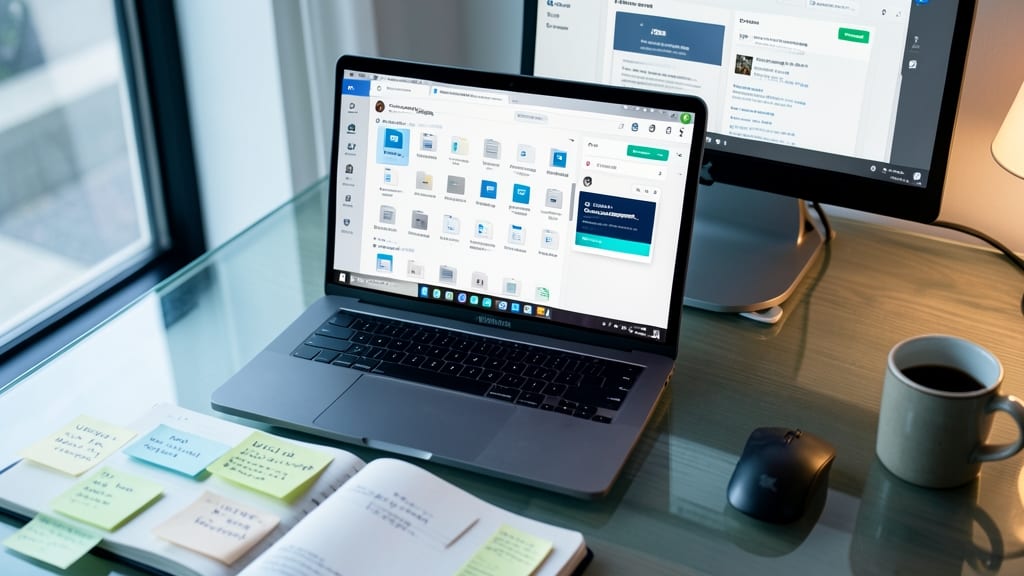
Tired of scrolling through endless files in Teams just to find that one template or client contract? Pinning files and links in channels is your secret weapon for instant access—no more wasted time digging through archives.
Simply right-click any file or link in a channel and select Pin to anchor it to the top. Teams supports up to 10 pinned items per channel, so you can highlight everything from client agreements to recurring meeting notes or design templates. The pinned section stays visible even as new messages roll in, ensuring critical resources are always front and center.
This feature shines for teams handling repetitive tasks, like sales teams accessing client contracts or designers sharing project templates. It’s also a lifesaver for new hires who need quick access to onboarding docs. ⚡
Create Private Channels for Sensitive Topics
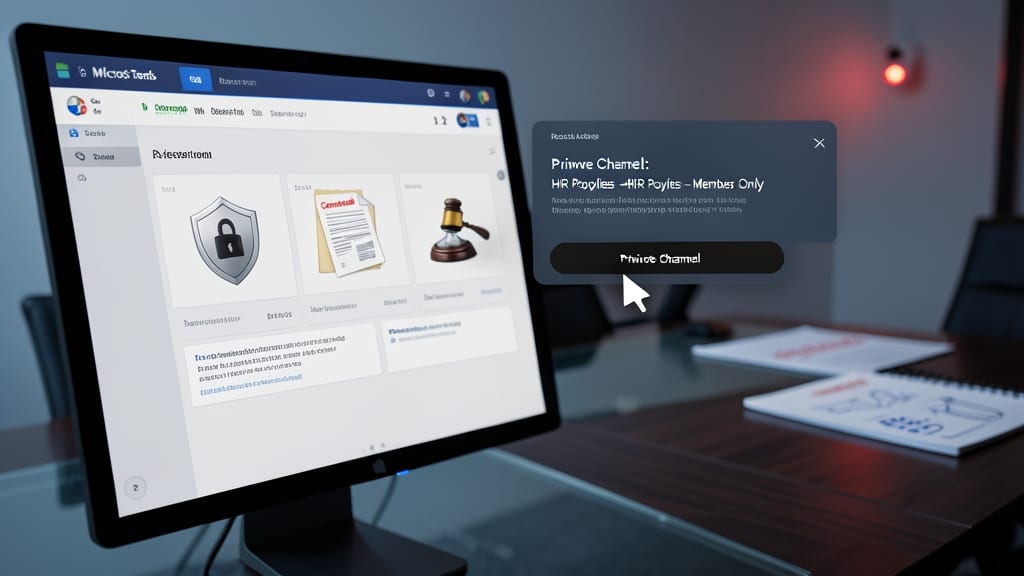
Not every conversation belongs in the open—especially when discussing HR policies, legal strategies, or R&D breakthroughs. Microsoft Teams’ private channels let you create secure spaces where only invited members can access sensitive discussions, files, or brainstorming sessions.
To set one up, simply right-click a channel, select “Create private channel”, and assign specific team members. Unlike standard channels, these require explicit permissions—no accidental exposure. Perfect for compliance-heavy industries or teams working with proprietary data, private channels ensure confidentiality without sacrificing collaboration.
HR teams can use them for confidential employee matters, legal teams for case strategy, and R&D for early-stage innovation discussions. The best part? No extra tools needed—it’s built into Teams. ✨
Schedule Regular Channel Cleanup Meetings
Set a recurring 15-minute monthly meeting to audit your Teams channels—because even the best-organized workspaces need occasional tune-ups. This isn’t just about deleting old channels; it’s about ensuring every channel still serves a purpose, has clear ownership, and aligns with your team’s current goals.
Use this time to archive inactive channels, rename outdated ones, and reassign ownership where needed. Microsoft Teams’ built-in analytics can highlight underused channels, while a quick survey of your team can reveal which channels are now redundant. Pro tip: Block the calendar invite as "Non-negotiable"—consistency is key to preventing workspace stagnation.
This practice is a game-changer for fast-growing teams or those with shifting priorities, like startups or project-based organizations. A little maintenance keeps your workspace lean, relevant, and ready for action. ✨
Integrate Third-Party Apps for Workflow Efficiency
Tired of juggling between Trello for tasks, Asana for projects, and Zoom for meetings? Microsoft Teams’ app integrations let you embed these tools directly into channels, so everything stays in one place.
With native connectors for Trello, Asana, Zoom, and more, you can pin live task boards, schedule meetings, or update project statuses without leaving Teams. The @mentions and comments sync across platforms, so discussions stay threaded and context-rich. Plus, real-time updates ensure your team never misses a deadline or meeting link.
This is a game-changer for teams using multiple productivity apps—no more tab-switching or lost updates. Perfect for agile teams, remote workforces, or anyone drowning in scattered tools. ✨
Train Teams on Channel Etiquette

Remote teams often struggle with unclear communication norms—especially when team members work across time zones or cultures. Establishing a channel etiquette guide ensures everyone follows consistent standards for tone, response times, and file-sharing, reducing misunderstandings and keeping discussions professional.
Start with a pinned document outlining key rules, like a 24-hour response time expectation for urgent messages or a file-sharing protocol (e.g., "Use the Files tab, not chat"). Add cultural notes—like avoiding sarcasm in written messages—to bridge gaps. Microsoft Teams’ built-in @mentions and reaction buttons can reinforce these norms visually.
This approach is ideal for global teams or hybrid workforces where miscommunication risks derail projects. A little structure goes a long way in keeping collaboration smooth. ✨