
Coding
Mastering Excel’s text functions can transform raw data into clean, organized insights. These 10 essential formulas—each with practical examples—will help you manipulate text like a pro, from cleaning data to extracting key information effortlessly.
Concatenate Function for Combining Text Strings

Need to merge first and last names, combine product codes, or add static labels to data? The CONCATENATE function is your go-to tool for effortless text combining in Excel. Unlike older versions requiring ampersands (&), this function cleanly merges cells with optional separators like spaces or hyphens—no manual typing or copy-pasting required.
Simply type =CONCATENATE(A2, " ", B2) to merge cells A2 and B2 with a space separator, or use the newer TEXTJOIN for dynamic delimiter handling. For example, combine "Product-" with a SKU (e.g., =CONCATENATE("Product-", C2)) to auto-generate labels. Works seamlessly with 255-character limits per cell, making it ideal for reports or standardized naming conventions.
Perfect for small business owners formatting invoices, HR teams creating employee IDs, or analysts building custom datasets—this function saves hours of manual work. ⚡
Text Function for Converting Numbers to Text
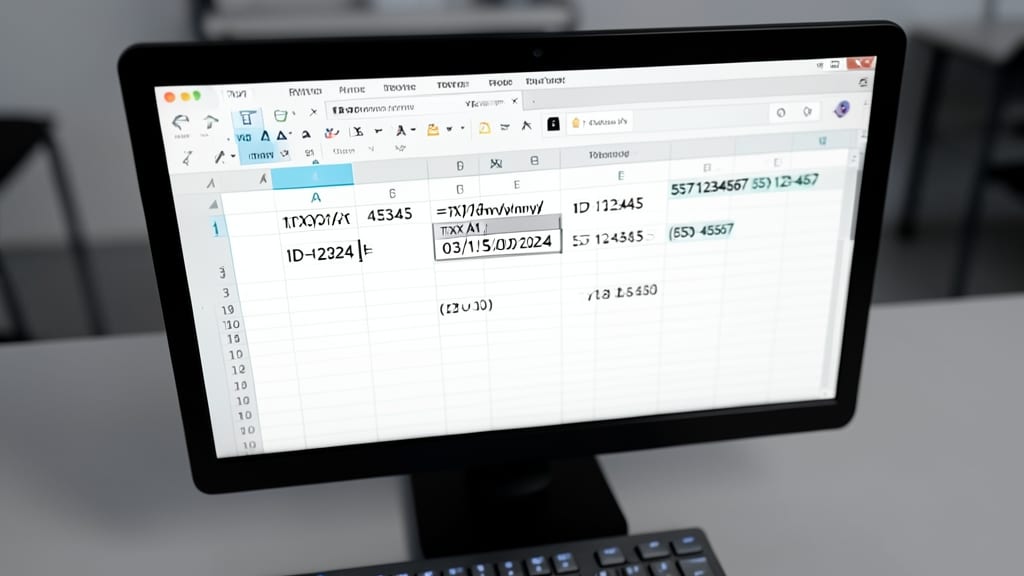
Need to display numbers as formatted text—like dates, phone numbers, or IDs—without calculations? The TEXT function in Excel is your go-to tool. Unlike basic conversions, it lets you control the exact output format, whether you're turning serial numbers into readable dates or ensuring phone numbers display with parentheses.
Use the syntax =TEXT(value, format_text) to customize outputs. For example, =TEXT(A1, "mm/dd/yyyy") converts a date stored as a number into a readable format like 04/05/2023. You can also format phone numbers as (123) 456-7890 or IDs with leading zeros—ideal for reports or databases where consistency matters.
This function shines when you need human-readable text from numeric data, such as invoices, logs, or standardized records. Perfect for analysts, accountants, or anyone working with structured data. ✨
Left and Right Functions for Extracting Partial Text

Tired of manually copying partial text like product codes or ZIP codes from messy datasets? The LEFT and RIGHT functions in Excel let you extract specific characters from the start or end of a string with just two arguments: the cell reference and the number of characters to pull.
Use LEFT(A2,3) to grab the first 3 characters of a product code (e.g., "ABC123" → "ABC"), or RIGHT(B5,5) to isolate a ZIP code from a full address. These functions work perfectly with fixed-length data, making them ideal for cleaning up IDs, serial numbers, or standardized codes in large datasets.
Data analysts and business users will love how these functions handle repetitive extraction tasks—no more copying and pasting! ✨
Mid Function for Extracting Text from Any Position

Need to pull a middle name from a full name string or extract a variable-length code from a larger text block? The MID function is your go-to tool for pinpointing text at any position in a string.
With three simple arguments—text, start position, and number of characters—you can extract anything from a 5-digit serial number buried in a 12-character string to a product model hidden in a longer description. For example, =MID("X1234Y56789", 3, 5) extracts "234Y5" from the middle of that ID. It’s perfect for dynamic data where the exact location isn’t fixed at the start or end.
Data analysts, inventory managers, and anyone working with unstructured text will love this function for its flexibility. Try it on your next dataset to pull out the exact segments you need—no guesswork required! ✨
Find and Substitute Functions for Text Replacement

Tired of manually fixing typos or inconsistent formatting in your datasets? The FIND and SUBSTITUTE functions are your secret weapons for zero-config text cleanup. While LEFT/RIGHT/MID extract pieces of text, these functions search for and replace entire strings—whether it’s correcting "USA" to "United States" or stripping out unwanted symbols like hyphens or special characters.
Use FIND to locate text within a cell (case-sensitive) and return its position, then pair it with SUBSTITUTE to swap it out. For example, =SUBSTITUTE(A1, "OldText", "NewText") instantly replaces all instances of "OldText" with "NewText" in cell A1. Need to handle multiple replacements? Nest the function—just like =SUBSTITUTE(SUBSTITUTE(A1, "Old1", "New1"), "Old2", "New2") for a two-step fix.
Data analysts and small business owners will love this for batch-cleaning messy imports, while marketers can use it to standardize product names or customer titles. No more copy-pasting—just one formula to rule them all. ✨
Trim Function for Removing Extra Spaces

When importing messy data from external sources—like CSV files or PDF exports—TRIM is your first line of defense. This function instantly removes all extra spaces, including those sneaking in at the start, end, or between words, ensuring your data looks polished and professional before further processing.
With just =TRIM(text), you can clean up strings like " Hello World " into "Hello World" in seconds. It’s especially useful when merging datasets or preparing text for formulas like CONCATENATE or UPPER, where hidden spaces can cause errors. Works seamlessly with entire columns using Ctrl+Shift+Enter for array formulas.
Perfect for data analysts, marketers, or anyone wrestling with imported files. Say goodbye to manual formatting—TRIM does the heavy lifting for you. ✨
Upper, Lower, and Proper Functions for Text Formatting
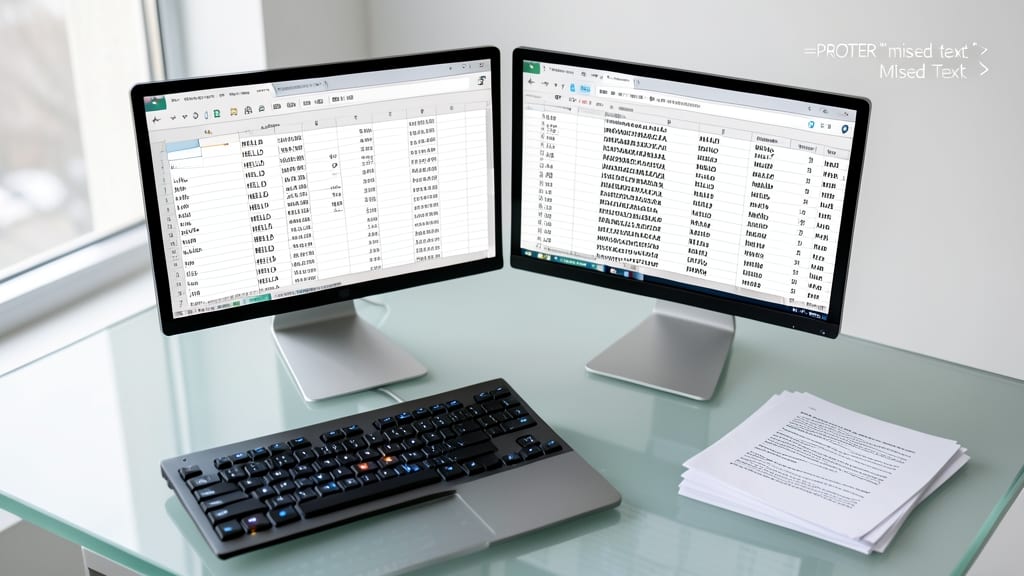
Tired of inconsistent text cases ruining your reports or database exports? The UPPER, LOWER, and PROPER functions in Excel are your secret weapons for enforcing uniformity effortlessly.
Use UPPER to convert all text to uppercase (e.g., =UPPER("hello") → "HELLO"), LOWER for lowercase (e.g., =LOWER("WORLD") → "world"), and PROPER to capitalize the first letter of each word (e.g., =PROPER("john doe") → "John Doe"). These functions are perfect for standardizing names, titles, or categorical data before exporting to PDFs or sharing with clients.
Accountants, HR professionals, and data analysts will love how these functions save time when preparing polished reports or merging datasets with mismatched formatting. ✨
Len Function for Counting Characters in Text

Need to validate password lengths or ensure ID fields meet requirements? The LEN function is your go-to tool for counting characters in a cell—no manual counting required. Whether you're auditing data integrity or analyzing text density in reports, this simple yet powerful function saves time and reduces errors.
With just =LEN(text), you get an instant character count. For example, =LEN(A2) reveals how many characters exist in cell A2. It’s perfect for enforcing rules like "Passwords must be 8+ characters" or "Product codes must be 12 digits" by comparing LEN results to thresholds using IF statements or conditional formatting.
Data analysts, IT admins, and anyone managing structured text will find LEN indispensable for maintaining consistency. ⚡
Search Function for Case-Insensitive Text Matching

Tired of missing critical data because of inconsistent capitalization? The SEARCH function in Excel is your case-insensitive lifesaver, scanning cells for text regardless of uppercase or lowercase letters.
Unlike its strict counterpart FIND, SEARCH ignores case, returning the starting position of the text (e.g., SEARCH("excel", "Excel is great") returns 1). This makes it perfect for auditing datasets with mixed formatting or validating entries where consistency isn’t guaranteed. Combine it with IFERROR to handle cases where text isn’t found.
Perfect for data analysts sifting through messy datasets or anyone maintaining databases where entry formats vary. ⚡
Flash Fill for Automating Text Extraction Patterns

Tired of manually splitting data like addresses or product codes? Flash Fill in Excel is your secret weapon—it learns your extraction patterns and applies them automatically with just a few keystrokes.
Type the first result manually, and Excel’s AI detects the rule (e.g., splitting "John,Doe,New York" into three columns). Press Ctrl+E to apply it instantly across your entire dataset. No complex formulas, no VBA—just zero-config automation for tasks like parsing CSV exports or cleaning messy imports.
Perfect for data analysts, small business owners, or anyone wrestling with inconsistent text formats. Once you try it, you’ll wonder how you ever lived without this time-saver. ✨