
Outlook
Microsoft Outlook remains one of the most powerful email tools—but most users miss key features that could save hours weekly. These 10 Outlook email tips and tricks for 2023 reveal hidden productivity hacks, automation shortcuts, and organization techniques even power users overlook.
Quick Steps for Email Automation Workflows
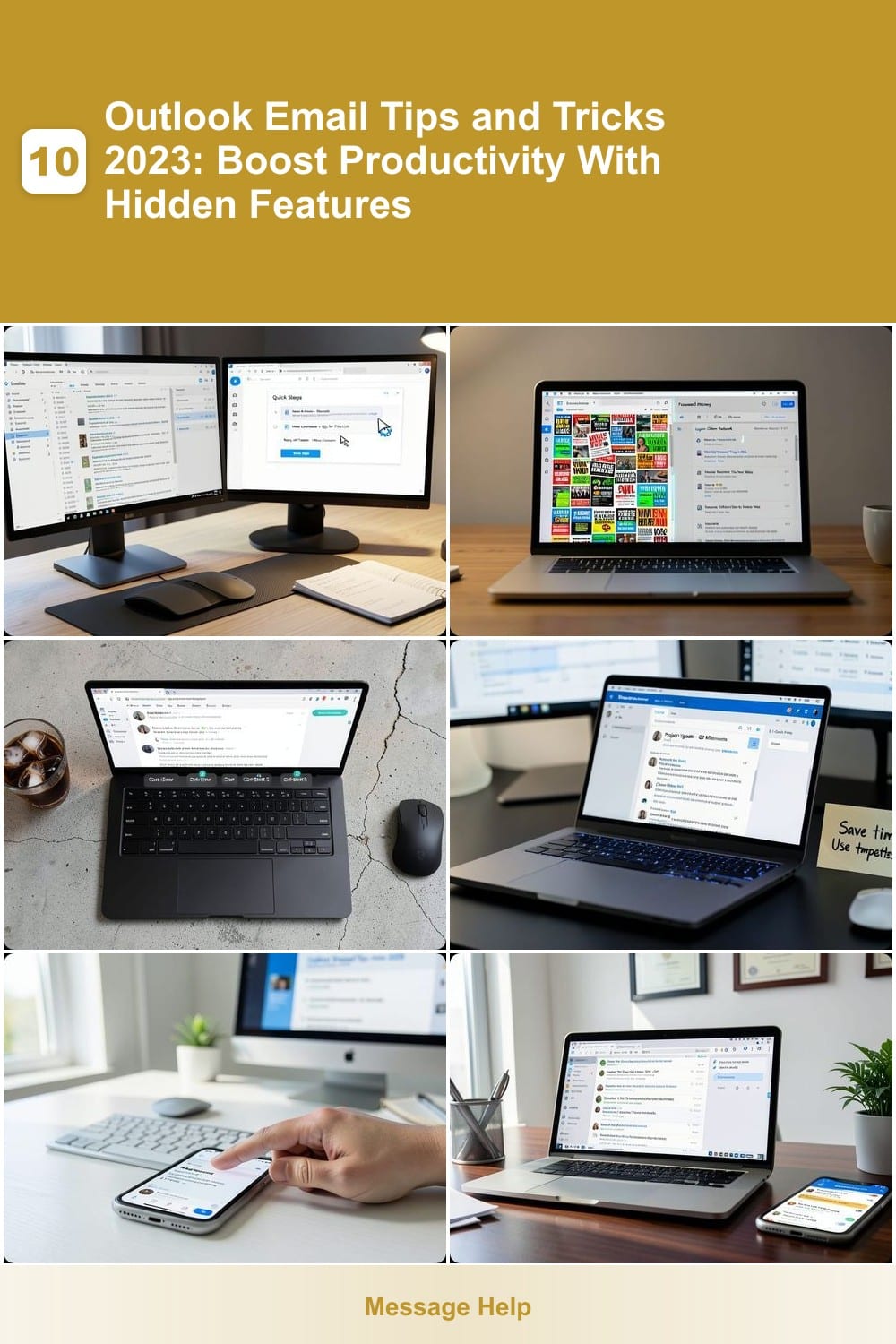
Tired of manually sorting through the same approval requests or client follow-ups every day? Quick Steps in Outlook lets you automate repetitive email tasks with just a few clicks—no coding required.
Create custom workflows like "Move to Archive + Flag for Follow-Up" or "Reply with Template + Mark as Complete" in seconds. Each step can include actions like moving emails to folders, sending automatic replies, or even forwarding messages to colleagues. The best part? You can save up to 10 Quick Steps per folder, and they sync across devices. For teams drowning in repetitive tasks, this feature cuts manual work by 30% or more.
Perfect for customer support teams, project managers, or anyone who spends hours handling routine emails. Try it today and reclaim your inbox time! ✨
Focused Inbox for Prioritizing Important Emails
Tired of promotional blasts and irrelevant emails burying your important messages? Outlook’s Focused Inbox uses AI to automatically sort high-priority emails into a separate tab, so you can focus on what truly matters. This isn’t just another filter—it learns from your interactions, adjusting over time to prioritize senders and topics you engage with most.
The feature analyzes email patterns, including response frequency and sender history, to place critical messages in your Focused Inbox while pushing newsletters and low-priority updates to a secondary tab. You can also manually move emails between tabs with a single click, giving you full control. Best of all, it syncs across Outlook desktop, web, and mobile for seamless access.
This is a game-changer for professionals juggling client communications, project updates, and team coordination. Whether you’re a manager drowning in meeting requests or a freelancer tracking client feedback, Focused Inbox ensures you never miss what counts. ✨
Keyboard Shortcuts for Faster Email Navigation
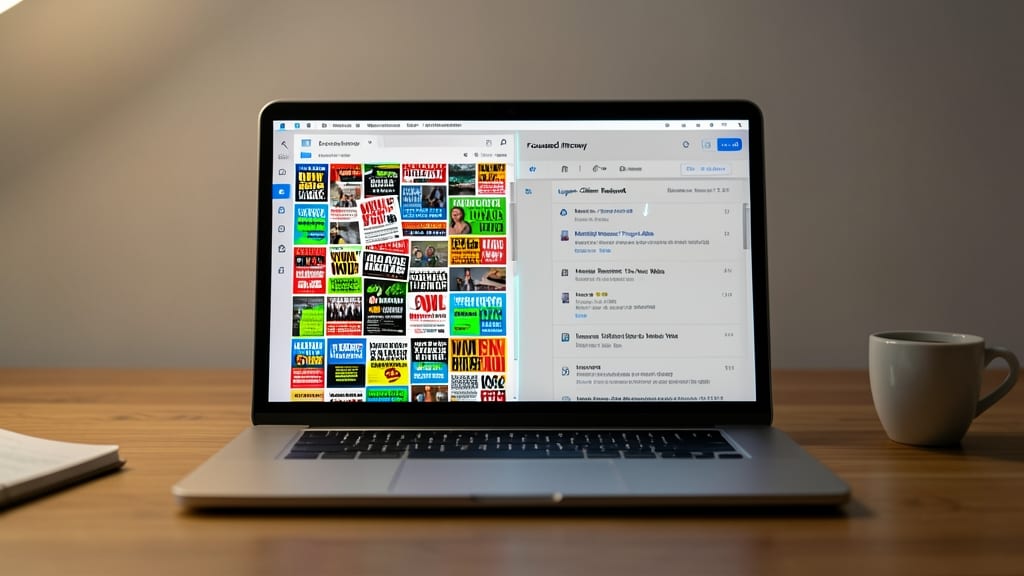
If you spend more than four hours a day in Outlook, you’re likely wasting time reaching for your mouse—keyboard shortcuts can cut that time by 30% or more. The secret lies in mastering 20+ essential shortcuts that let you compose, reply, and search without lifting your hands from the keyboard.
Start with Ctrl+Shift+E to quickly compose a new email, or use J/K to navigate messages like a pro (up/down). Need to flag an email? Try Ctrl+Shift+F, and search your inbox instantly with Ctrl+E. For power users, Ctrl+Shift+A opens the Actions menu, while Ctrl+Shift+D lets you delete without confirmation. Outlook even supports custom shortcuts—right-click any command in the ribbon and choose "Add to Quick Access Toolbar."
This trick is a game-changer for executives, developers, and customer support teams drowning in emails. Once you memorize these, you’ll wonder how you ever worked without them. ⚡
Email Templates to Save Repeated Responses
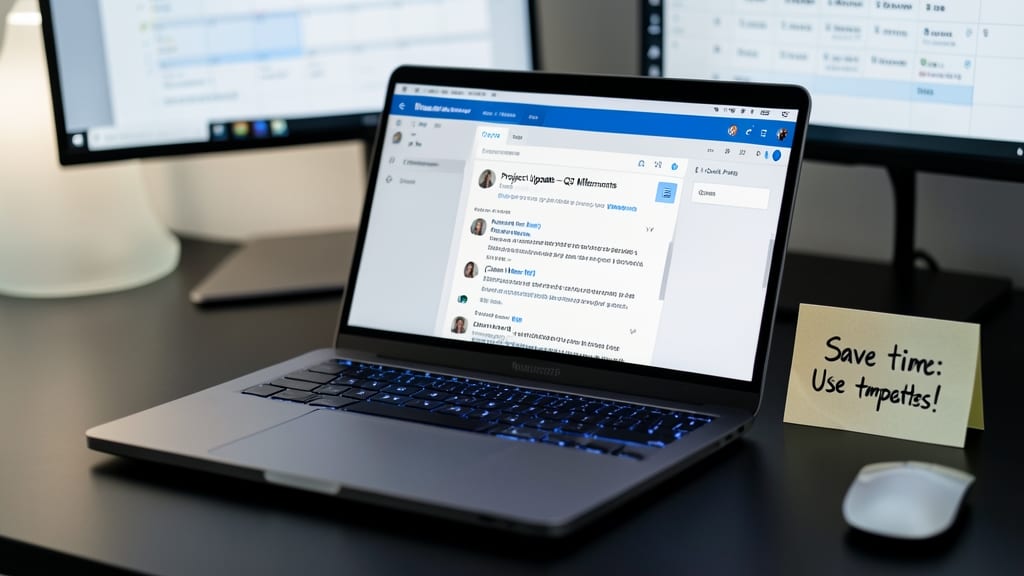
Tired of typing the same meeting requests or client updates every day? Outlook’s email templates let you save and reuse polished responses in seconds—no manual retyping required.
Create custom templates for common replies (like scheduling confirmations or project updates) by saving a drafted email to your Templates folder. Then, access them instantly via the Insert > Quick Parts menu. Pro tip: Use placeholders (like [Client Name]) for dynamic fields, and sync templates across devices for seamless workflows. This cuts response time by 60% for repetitive tasks.
Perfect for customer support teams, sales reps, or anyone drowning in repetitive emails. Try it today and reclaim hours weekly! ✨
Swipe Gestures for Mobile Outlook

Skip the mouse and keyboard—your phone can now handle email actions with a simple swipe. The Mobile Outlook app lets you archive, flag, or delete emails instantly using touch gestures, turning your device into a productivity powerhouse for professionals on the move.
Customize gestures in Settings > Mail > Swipe Actions to match your workflow. Swipe left to archive or flag, right to delete or mark as read, and even set up custom actions like moving emails to specific folders. This hands-free approach cuts down on tapping and scrolling, saving precious seconds per email.
Ideal for sales reps, managers, or anyone juggling emails between meetings, these gestures work seamlessly across iOS and Android. Try it during your next commute—your inbox will thank you. ✨
Rules to Auto-Organize Incoming Emails

Tired of drowning in promotional emails, newsletters, and notifications that clutter your inbox? Outlook’s Rules feature lets you create automated filters that sort, tag, or even forward emails based on specific criteria—so you never have to manually organize another message.
Set up rules to automatically move emails from specific senders (like newsletters) to designated folders, flag messages containing keywords (such as "urgent" or "meeting"), or forward attachments (like invoices) directly to your accounting system. You can even apply multiple conditions (e.g., "from:client AND subject:report") for precision. Rules work in real-time, ensuring your inbox stays tidy without lifting a finger.
This is a game-changer for small business owners, freelancers, or anyone juggling multiple email accounts. Spend less time sorting and more time focusing on what matters. ✨
Focused Inbox for Teams Collaboration
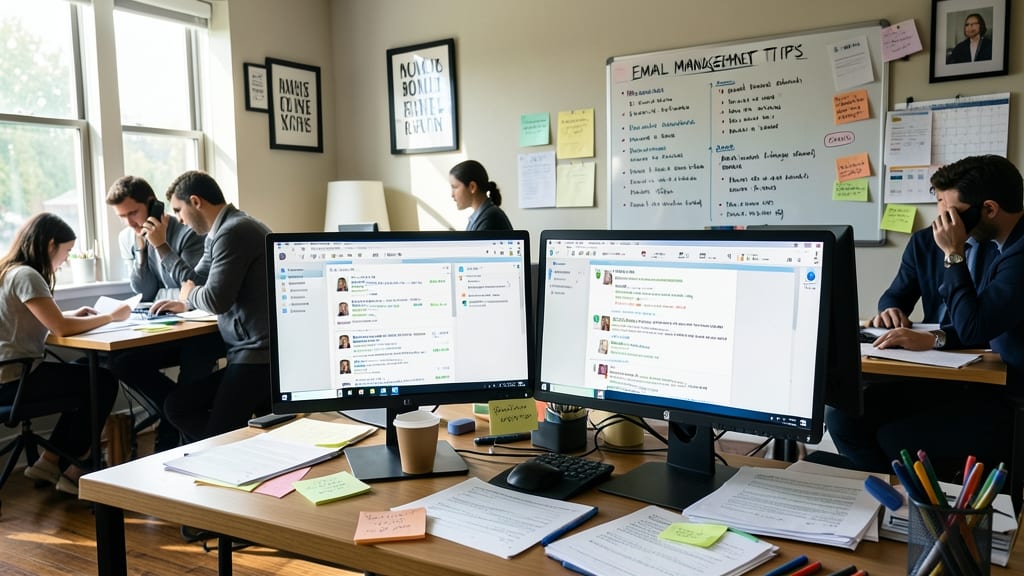
Small businesses drowning in shared email chaos can finally breathe easy with Outlook’s shared Focused Inbox feature. Unlike personal Focused Inboxes, this tool lets teams collaborate on high-priority emails—like support tickets or client inquiries—without cluttering individual inboxes.
Set up a shared mailbox (like support@yourcompany.com), then enable Focused Inbox to automatically surface critical messages. Teams can assign responses, add notes, and track progress—all while keeping personal inboxes clean. The real-time sync ensures everyone stays on the same page, reducing missed replies or duplicate work.
Perfect for startups, agencies, or any team juggling multiple client emails—this is the zero-config collaboration tool you’ve been missing. 💪
Search Operators for Advanced Filtering
Drowning in a sea of emails but can’t find that one critical message from last quarter? Boolean search operators in Outlook turn your inbox into a precision tool—no more scrolling through years of correspondence.
Use from:client AND subject:report to pinpoint exact matches, or combine has:attachment OR flagged:yes to filter for urgent files. Pro tip: Wrap phrases in " " (e.g., from:"legal-team") for exact wording. These operators work in both desktop and web versions, making them ideal for professionals who juggle high-stakes communications where missing a detail isn’t an option. ✨
Read Receipts and Delivery Confirmations

Ever sent a time-sensitive email and wondered if it was actually read? Outlook’s read receipts and delivery confirmations let you track when critical messages land—and whether they’re opened—so you can follow up strategically.
Enable read receipts in the compose window’s Options tab, and you’ll get notifications when recipients open your email. For delivery confirmations, check the same tab to ensure emails aren’t stuck in spam or lost in transit. These features are especially useful for sales teams chasing leads or legal professionals managing deadlines.
Pro tip: Combine this with Focused Inbox to prioritize replies from recipients who’ve engaged with your message. ⚡
Clean Up Conversation Threads Efficiently
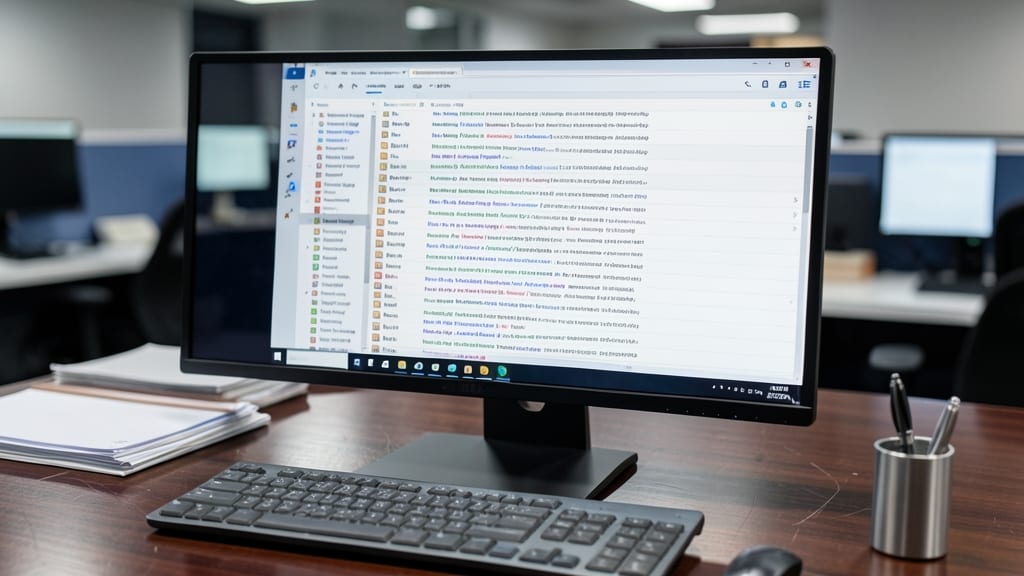
Tired of scrolling through endless email chains that feel like a never-ending loop? Outlook’s Clean Up feature is your secret weapon for instantly trimming the fat from long conversations while keeping the most important messages intact.
Right-click any conversation thread and select Clean Up to remove redundant replies—keeping only the first message and your responses. This works in both the desktop and web versions of Outlook, and it’s especially useful for teams dealing with client inquiries, project updates, or meeting follow-ups where threads can spiral out of control.
Perfect for project managers, customer support teams, or anyone drowning in back-and-forth emails, this one-click fix keeps your inbox lean without losing context. ✨