
Coding
Excel’s math and trigonometric functions unlock powerful data analysis and engineering capabilities. From financial modeling to physics simulations, these essential formulas help professionals solve complex problems with precision and efficiency.
SUM Function for Basic Arithmetic Calculations
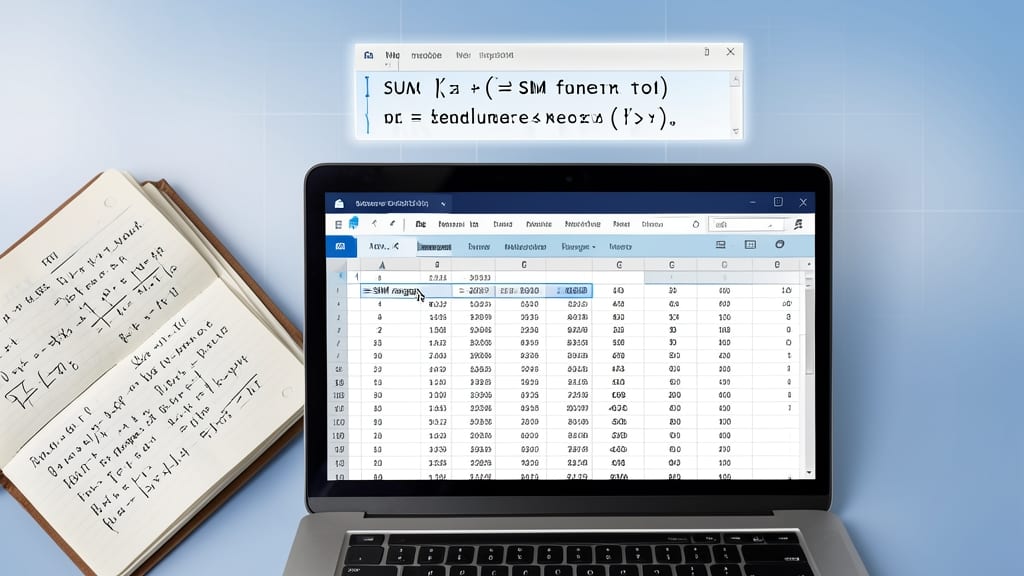
Need to crunch numbers fast? The SUM function is Excel’s most reliable tool for adding values across cells, rows, or columns—whether you’re tallying sales, inventory, or project budgets.
Type =SUM(range) in any cell, and Excel instantly calculates totals for up to 255 cell references (or more with array formulas). It ignores empty cells and text, and even handles multi-range sums like =SUM(A1:A10,B1:B10). For dynamic ranges, use =SUM(A1:A100)—Excel adjusts automatically as data grows.
Accountants, small business owners, and data analysts rely on this for zero-config accuracy. Try it on your next spreadsheet—it’s the first function every Excel user masters. ⚡
AVERAGE Function for Statistical Analysis

When your dataset runs into the thousands, manually calculating averages becomes a nightmare—but Excel’s AVERAGE function turns raw numbers into actionable insights instantly. Unlike simple sums, this function handles missing values gracefully and reveals the true center of your data distribution.
Simply type =AVERAGE(range) to compute the arithmetic mean across any selection, whether it’s sales figures, test scores, or sensor readings. The function automatically ignores text or empty cells, and you can nest it with other formulas (like IF or SUMIF) for conditional analysis. For example, =AVERAGEIF(A2:A100, ">50") calculates the average only for values exceeding 50.
Perfect for researchers, marketers, and business analysts who need to spot trends or validate hypotheses without writing a single line of code. ⚡
SIN and COS Functions for Engineering Trigonometry

When designing bridges, analyzing sound waves, or optimizing machinery, SIN and COS functions become your digital drafting tools. These trigonometric powerhouses in Excel translate angles into precise calculations—critical for modeling everything from vibration frequencies to structural load distributions with mathematical accuracy.
Enter an angle in radians (use RADIANS() to convert degrees), and SIN() returns the vertical component while COS() reveals the horizontal. For example, =SIN(PI()/2) yields 1 (the peak of a sine wave), while =COS(0) returns 1 (the starting point). Combine them with PI() for circular motion analysis or TAN() for slope calculations—all without leaving Excel.
Mechanical engineers and physicists rely on these functions to simulate rotational dynamics, predict wave interference, or validate stress-test models. For anyone bridging theory and real-world applications, mastering SIN and COS turns Excel into a physics lab. ✨
TAN Function for Slope and Angle Calculations

Need to calculate roof pitches or terrain slopes without breaking out a protractor? The TAN function in Excel is your digital drafting tool, converting rise-over-run measurements into precise angles for architectural and surveying projects.
Simply input =TAN(opposite/adjacent) to get the tangent of an angle, then use =ATAN(result) to convert back to degrees. For example, a 6-inch rise over 12-inch run (0.5) yields a 26.57° pitch—perfect for specifying roof angles or grading slopes. Combine it with DEGREES() for instant degree conversion.
Architects and surveyors rely on this for 2D/3D modeling accuracy, while landscape designers use it to plan drainage systems. No more guesswork—just plug in your measurements and let Excel handle the math. ✨
POWER Function for Exponential Growth Models

When modeling real-world phenomena like bacterial growth or investment returns, the POWER function becomes your secret weapon. Unlike linear calculations, it handles exponential scaling—whether you're projecting a population doubling every 20 years or calculating compound interest over decades.
Syntax is straightforward: =POWER(base, exponent), where the base is your starting value and the exponent determines how quickly it scales. For example, =POWER(1.05, 10) calculates a 5% annual return over 10 years (1.6289), while biologists might use it to model viral spread with exponential factors. The function even handles negative exponents for decay scenarios.
This is the go-to tool for economists, epidemiologists, and data scientists working with scenarios where small changes compound dramatically. Try it with your own datasets to visualize how tiny percentages can lead to massive outcomes over time. ✨
SQRT Function for Root Calculations in Physics

When physics experiments demand precision—like calculating projectile trajectories or analyzing statistical data—Excel’s SQRT function becomes your go-to tool. This function extracts the square root of a number, solving quadratic equations, computing distances, and reducing variances in datasets with ease.
To use it, simply type =SQRT(number) in any cell. For example, =SQRT(16) returns 4, while =SQRT(A2) pulls the square root from cell A2. It’s especially useful for physicists working with Pythagorean theorem calculations or engineers analyzing signal variances in experimental results.
Ideal for researchers, data scientists, and students, the SQRT function ensures accuracy in real-world applications where even minor errors can impact outcomes. ✨
RADIANS Function for Unit Conversion in Trigonometry

When programming or designing in CAD software, you’ll often encounter trigonometric functions that only accept radians—not degrees. The RADIANS function bridges this gap by converting degree values to their radian equivalents, ensuring compatibility with SIN, COS, and TAN calculations.
Simply input a degree value (e.g., =RADIANS(180)), and Excel returns the radian value (3.141592654 for 180°). This is critical for accurate simulations in robotics, game physics, or structural engineering where precision matters. Pair it with DEGREES() for bidirectional conversions.
Programmers and CAD specialists will rely on this function daily to avoid errors in angle-based calculations. It’s the unsung hero behind smooth animations and precise mechanical designs. ✨
LOG and LN Functions for Logarithmic Scaling

When your datasets span orders of magnitude—think stock market crashes, radioactive decay, or internet traffic spikes—LOG and LN become your secret weapons. These functions transform exponential relationships into linear scales, making patterns visible and calculations manageable where raw numbers would overwhelm.
Excel’s LOG uses base-10 by default (customizable with a second argument), while LN calculates natural logarithms (base e). For example, =LOG(1000) returns 3 (since 10³ = 1000), and =LN(7.389) reveals the exponent needed to grow e to that value. This is invaluable for compressing datasets, modeling half-life decay in chemistry, or analyzing algorithmic complexity in computer science.
Data analysts and scientists rely on these functions to detect trends in skewed distributions, normalize exponential growth curves, and simplify multiplicative relationships. Try plotting =LOG(A2) against =LN(B2) in a dataset with wide-ranging values—you’ll see patterns emerge that raw numbers hide. ✨
ROUND Function for Financial and Engineering Precision

When every penny or millimeter counts, the ROUND function becomes your secret weapon. Unlike basic arithmetic, it ensures financial reports display $123.45 instead of $123.456789, and engineering specs stay precise to the nearest 0.001—no rounding errors allowed.
Simply type =ROUND(number, num_digits) to control decimal places: use ROUND(3.14159, 2) for 3.14, or ROUND(123.456, -1) to round to the nearest ten (120). This function also works with negative numbers and handles edge cases like 0.5 rounding up by default (use ROUNDUP/ROUNDDOWN for alternatives).
Accountants, engineers, and data analysts rely on it daily to maintain compliance standards and avoid costly miscalculations in budgets, blueprints, or statistical models. ⚡
ATAN2 Function for Advanced Angle Calculations

When standard trigonometry falls short, ATAN2 steps in to handle the nuances of multi-quadrant angles—critical for robotics pathfinding, GPS navigation, and polar coordinate systems. Unlike ATAN, which can’t distinguish between positive/negative angles, ATAN2 uses two arguments (y-coordinate, x-coordinate) to return precise angles between -π and π radians (or -180° and 180°), ensuring accuracy across all four quadrants.
The function’s syntax—=ATAN2(y,x)—makes it ideal for converting Cartesian coordinates to polar angles, calculating bearing directions, or optimizing robot arm movements. For example, in autonomous vehicles, ATAN2 determines steering angles by analyzing sensor data, while in game development, it converts screen coordinates to precise rotation values for 3D objects.
Engineers and developers working with spatial data or dynamic systems will find ATAN2 indispensable for its reliability in edge cases (like division-by-zero scenarios). It’s the go-to for anyone needing quadrant-aware precision beyond basic trigonometry. ✨