
PowerPoint
Struggling to make your PowerPoint presentations more dynamic? These seven transition effects will transform your slideshow from boring to breathtaking, keeping your audience engaged with professional polish and seamless flow.
Fade Slide Transition for Elegant Professionalism
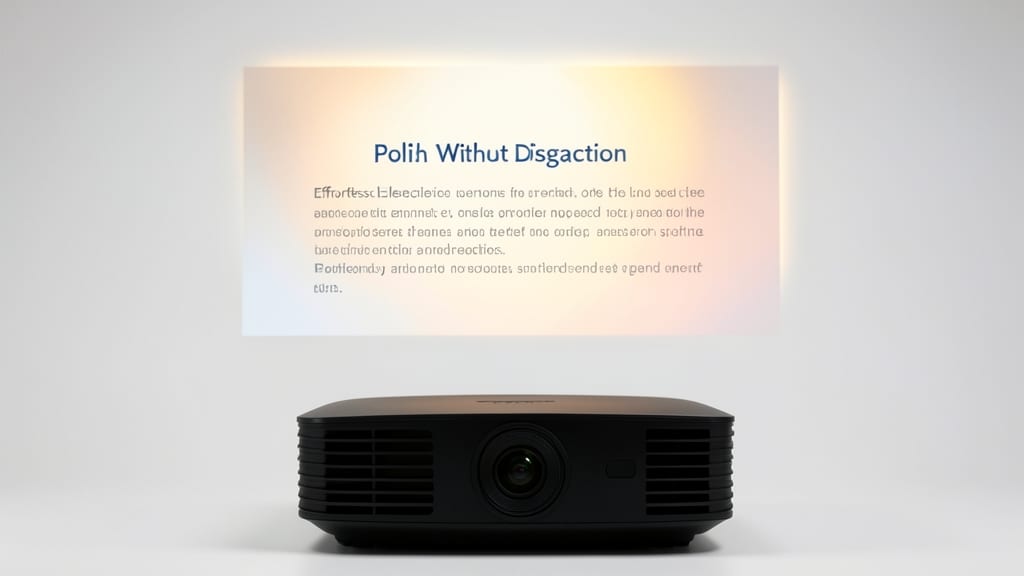
When your presentation demands polish without distraction, the Fade transition delivers effortless elegance. Unlike flashy animations, it smoothly dissolves one slide into the next, ensuring your audience stays focused on your message—not the visuals. This subtle yet sophisticated effect works seamlessly across PowerPoint 2016, 2019, and 365, making it a universal choice for professionals.
Customize the duration (0.1s to 5s) to control pacing, and pair it with sound effects for added emphasis without overpowering your content. The minimalist approach makes it perfect for boardroom pitches, academic lectures, or investor decks, where clarity and professionalism are non-negotiable. ⚡
Push Slide Transition for Dynamic Movement
Need to keep your audience on the edge of their seats? The Push Slide Transition injects energy into your presentation by sliding one slide horizontally or vertically into view, creating a sense of movement and momentum.
This transition works best with directional cues—push left for progression, right for regression, or up/down for emphasis. Unlike fades, it subtly guides attention by making the transition feel intentional. For storytelling, use it to highlight key shifts in your narrative, like moving from problem to solution or past to future. The effect is built into PowerPoint’s Transitions tab and works seamlessly across PowerPoint 2016 and 365.
Storytellers, marketers, and educators will love this for dynamic storytelling, while trainers can use it to emphasize step-by-step processes. Just avoid overusing it—timing matters most! ✨
Zoom Slide Transition for High-Impact Reveals
When you need to make a slide feel like a grand reveal, PowerPoint’s Zoom transition delivers exactly that—cinematic energy that commands attention. Unlike subtle fades or directional pushes, this effect zooms in or out to highlight pivotal moments, turning ordinary slides into memorable focal points.
You can adjust the zoom direction (in or out) and speed to control the drama, while the blur effect on the outgoing slide creates a polished, professional look. It’s especially effective for product demos, keynote speeches, or investor pitches where you want to emphasize a single slide’s impact. The transition works seamlessly in PowerPoint 2016 and later, including the desktop and online versions.
Perfect for presenters who want to steal the show without overpowering their content, this transition is a game-changer for high-stakes moments. ⚡
Slide Morph Transition for Seamless Data Visualization
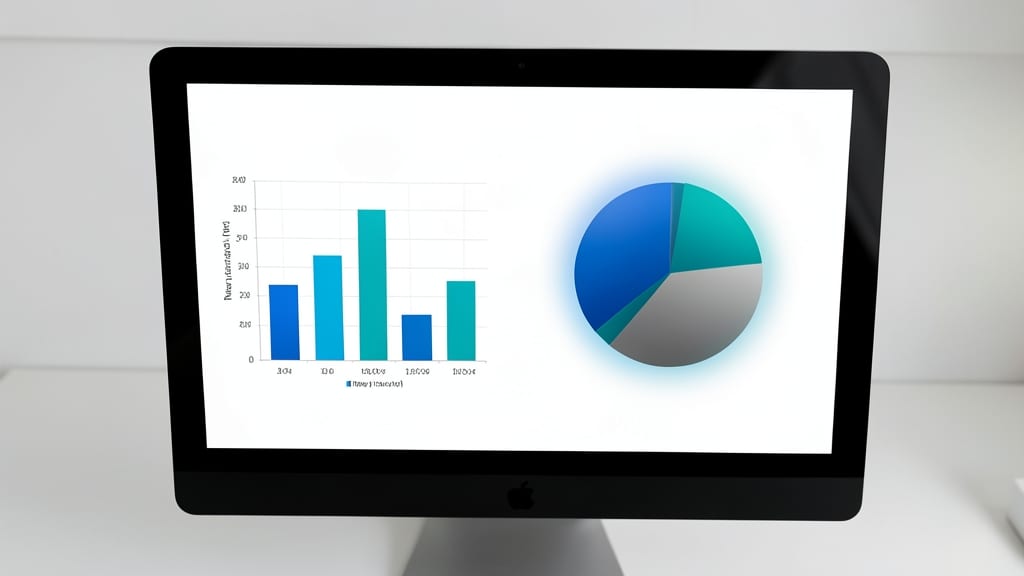
When your slides are packed with charts, graphs, or complex diagrams, the last thing you want is a jarring slide change that pulls focus from your data. The Morph transition in PowerPoint solves this by smoothly transforming one visualization into another—whether it’s a bar chart evolving into a pie chart or a line graph shifting into a scatter plot.
Available in PowerPoint 2016 and later, this transition works best with vector-based shapes and objects (like SmartArt or inserted charts) and lets you control the duration for a polished, professional look. Unlike other transitions, Morph doesn’t just replace slides—it preserves the visual flow, making it ideal for analysts, educators, or anyone presenting data-heavy content.
Perfect for data scientists, marketers, or trainers who need to compare trends or highlight shifts without losing audience attention. Just ensure your objects are aligned properly for the smoothest effect. ✨
Wipe Slide Transition for Creative Storytelling
Want to turn your presentation into a mini-movie without the Hollywood budget? The Wipe Slide Transition lets you reveal content with a sweeping motion—horizontally, vertically, or even diagonally—like a director’s cut for your pitch deck.
This transition works in PowerPoint 2013 and later, offering three wipe directions to match your storytelling rhythm. Pair it with custom timing (0.5s to 5s) and sound effects (like a swoosh or drum roll) to amplify the drama. It’s especially effective for creative portfolios or marketing decks where you want to emphasize a shift in narrative.
Perfect for designers, filmmakers, or anyone pitching bold ideas—just don’t overuse it, or you’ll risk looking like you’re editing a music video. ✨
Fade Through Black for Dramatic Pauses
Want to turn your presentation into a gripping story? The Fade Through Black transition adds a cinematic pause between slides, creating tension and focus—ideal for high-stakes moments like product launches or keynote speeches.
This effect fades your current slide into a solid black screen before smoothly revealing the next. You can adjust the transition speed (from 0.5s to 10s) and even add sound effects for extra impact. Unlike standard fades, it forces the audience to pause, making it perfect for dramatic reveals or emphasizing key data.
Best for executive pitches, creative portfolios, or storytelling presentations where you want to control pacing and build anticipation. Use it sparingly—once per section—to keep your audience on the edge of their seats. ✨
3D Slide Transition for Futuristic Presentations
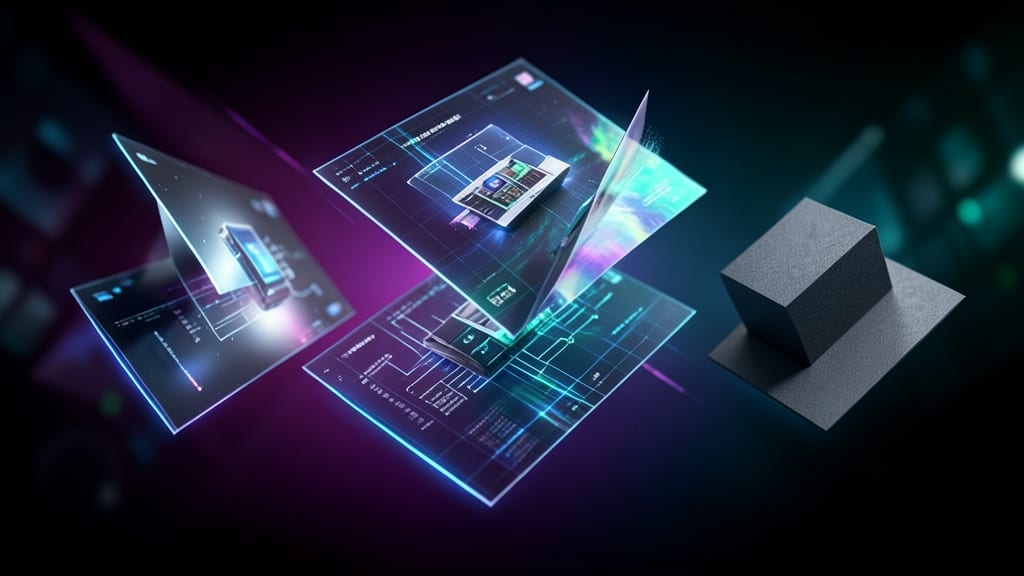
Want your tech presentations to feel like they’re straight out of a sci-fi movie? The 3D Slide Transition in PowerPoint delivers exactly that with rotations, flips, and perspective shifts—perfect for showcasing futuristic concepts or cutting-edge tech demos.
This transition offers three distinct 3D effects: cube, pyramid, or organic flip, each with adjustable rotation angles and axis control. It’s available in PowerPoint 2013 and later, including the desktop and online versions, making it easy to implement. Pair it with gradient backgrounds or holographic visuals for maximum impact.
Ideal for startup pitches, AI/AR demos, or design portfolios, this effect speaks directly to audiences who crave innovation. Just avoid overusing it—save it for moments where you want to wow your audience with a tech-forward vibe. ✨